AI for Admin Work: Emails, Minutes and Reports in Less Time
Admin work is full of repeatable writing and formatting. Here's how to use AI for emails, minutes and reports, with prompts you can reuse and rules to stay safe.
Admin work keeps an organisation running, but much of it is repetitive: the same kinds of emails, the same meeting format, the same weekly report with new numbers. That’s exactly the type of work where AI tools help most.
This guide shows practical ways to use AI for admin work, with prompts you can copy and adapt, a simple workflow for each task, and the rules that keep you and your organisation safe.
Quick answer: Use AI for admin work by giving it clear context and a format: it can draft routine emails, turn rough notes into minutes with owners and deadlines, summarise long documents and outline reports. Treat every output as a draft, check names, dates and figures, and never paste personal or confidential data into a tool your organisation hasn’t approved.
Why admin work suits AI
AI tools like Claude are strongest at language tasks: writing, rewriting, summarising and organising text. Admin work is full of these. They also tend to be:
- Repeatable, so a good prompt can be reused every week.
- Easy to check, because you know what the correct email or minute looks like.
- Low-risk when reviewed, since a human always signs off before anything is sent.
The aim isn’t to hand over your responsibilities. It’s to get from a blank page to a solid draft in less time, so you can spend your attention on accuracy, people and priorities.
The golden rule: context, goal, format
Before the tasks, one habit makes every prompt better. Include three things:
- Context: who is involved and what’s happening.
- Goal: what the output needs to achieve.
- Format: length, tone and structure.
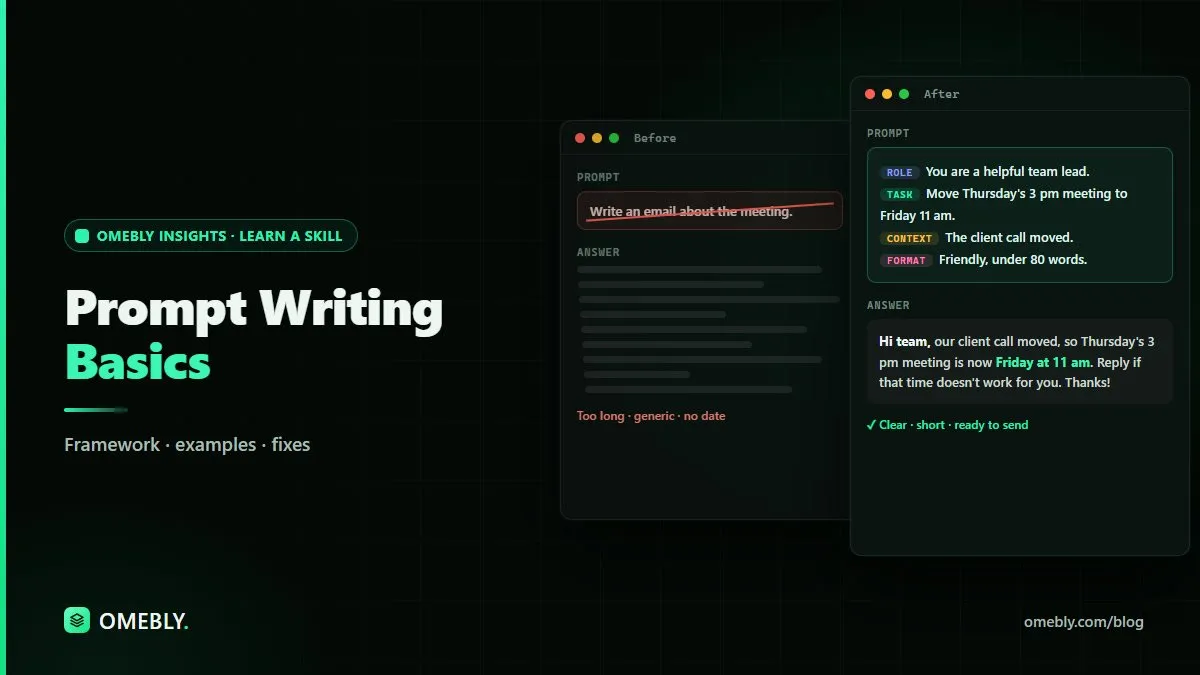
Compare “Write an email about the meeting” with “Write a short, polite email to the finance team confirming that Thursday’s budget review has moved to 3 pm in Room 2. Ask them to bring the updated figures. Under 80 words.” The second gives the AI everything it needs. Our guide to prompt writing basics goes deeper on this.
1. Emails: faster drafts that still sound like you
Email is where most people start, and for good reason.
Routine emails
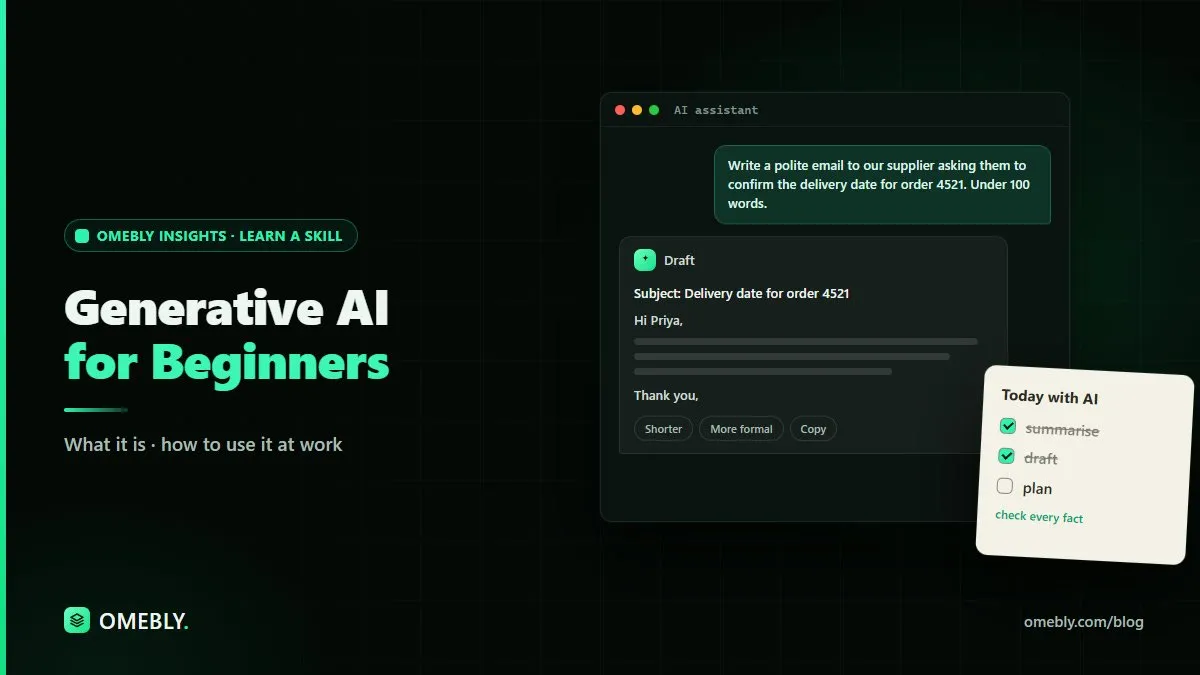
Use AI for confirmations, reminders, follow-ups and polite refusals.
Prompt to try:
“Draft a friendly reminder to all staff that timesheets are due by 5 pm Friday. Mention that late submissions delay processing. Keep it under 70 words and end with a thank you.”
Replies to long or tricky emails
Paste the email (with names and private details removed) and ask for a reply that covers each point.
Prompt to try:
“Here’s an email from a supplier. Draft a reply that thanks them, agrees to the new delivery date, and politely asks why the invoice amount has changed. Professional and calm tone.”
Make it yours
Always edit the draft. Change phrases you’d never use, check every date and number, and make sure the tone suits the relationship. Over time, save prompts that work into a personal library.
2. Meeting minutes: from rough notes to clean record
Writing minutes is one of the biggest time savers.
A simple workflow
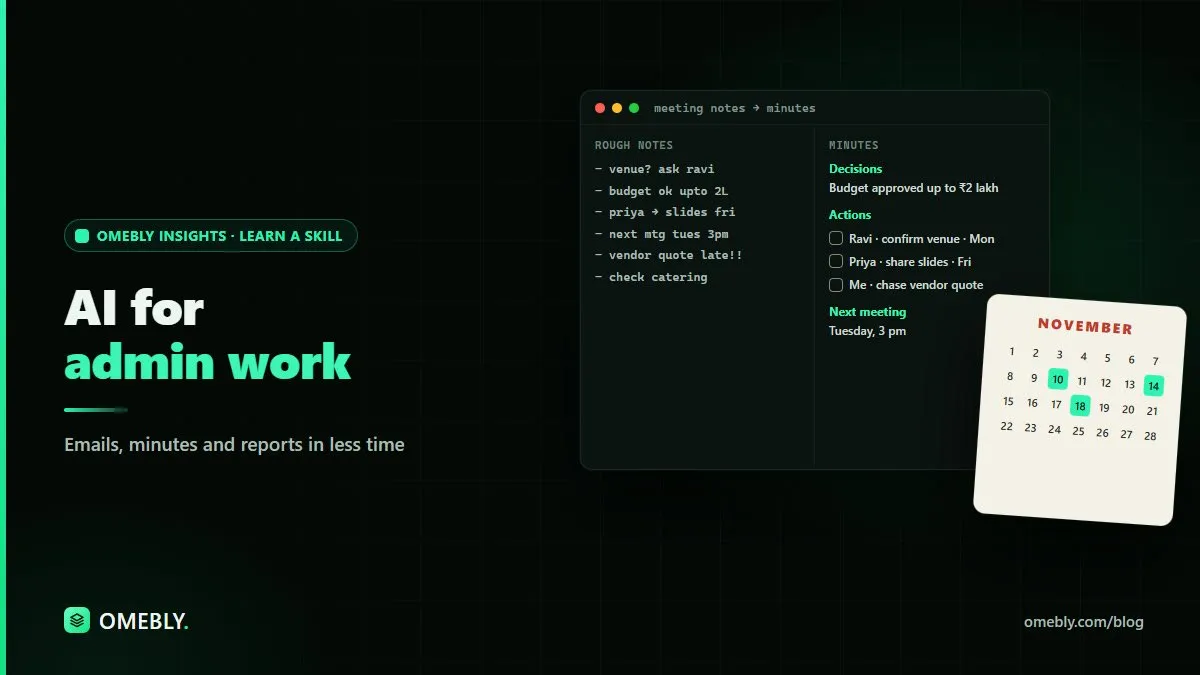
- Take quick notes during the meeting. Focus on decisions, owners and dates rather than full sentences.
- Paste your notes into the AI tool after removing anything confidential.
- Ask for a fixed structure.
- Check the draft against your notes.
- Send it for confirmation to the chair or attendees.
Prompt to try:
“Turn these notes into meeting minutes with these sections: Attendees, Agenda items, Key discussion points, Decisions, Action items (as a table with Owner and Deadline). Don’t add anything that isn’t in the notes.”
That last line matters. It reduces the chance of the AI filling gaps with invented details.
If you have a recording or transcript
Some organisations allow meeting transcripts. If yours does, you can ask AI to pull out decisions and action items. Check that everyone knows the meeting is recorded, and follow your organisation’s rules on storing transcripts.
3. Summaries: read less, understand more
Admin teams often receive long policies, circulars and reports that need to be shared in short form.
Prompt to try:
“Summarise this document for busy managers in five bullet points. Then list any deadlines or actions required, with dates.”
For PDFs, our free AI summarizer gives you a quick summary you can check against the original.
Always check a summary against the source for anything important, especially dates, amounts and obligations.
4. Reports: structure first, numbers second
Weekly and monthly reports follow a pattern. AI helps you build the structure and the words, while you supply and verify the figures.
A practical approach
- Create a report template once. Ask AI: “Create a template for a one-page monthly operations report with sections for Summary, Key figures, Issues, Actions and Next month.”
- Calculate figures in your spreadsheet. Don’t ask AI to do the maths you’ll report. Use formulas you can check. Our advanced Excel skills guide covers the functions that make this quicker.
- Ask AI to write the commentary. Paste your verified figures and ask for a short, neutral summary of what changed.
- Review and adjust. Make sure the commentary doesn’t overstate or misread the numbers.
5. Other admin tasks worth trying
- Templates: leave request forms, onboarding checklists, visitor policies.
- Notices: office closures, maintenance alerts, event announcements.
- Scheduling help: drafting agendas or comparing options for a team event.
- Tidying data: turning a messy list into a clean table.
- Rewriting: making a dense policy easier to read.
Build a reusable prompt library
The biggest time savings come when you stop writing prompts from scratch. Once a prompt gives you a good result, save it.
A simple way to organise a prompt library:
- Create one document or spreadsheet with columns for task, prompt, notes and last updated.
- Use placeholders such as [RECIPIENT], [DATE] or [TOPIC] so the prompt works every time.
- Group prompts by task: emails, minutes, summaries, reports and notices.
- Record what to check after each prompt, such as “confirm dates against the calendar”.
- Review the library monthly and remove prompts that no longer work well.
If your team shares a library, agree on a consistent tone and format so everyone’s emails and minutes look alike. This also makes onboarding new team members easier, since they can see how routine tasks are handled.
Using AI responsibly in admin roles
Admin staff often handle the most sensitive information in an organisation: personal records, pay details, contracts and complaints. That makes careful use essential.
Protect privacy
- Follow your organisation’s AI policy. If there isn’t one, ask before using AI with work documents.
- Remove names, contact details, ID numbers and pay or financial details before pasting text.
- Never share passwords, bank details or confidential HR matters with an AI tool.
Check facts every time
AI can get names wrong, swap dates, or add details that weren’t in your notes. Read every output before sending, and compare it against the original.
Keep humans in charge
Use AI for drafts and summaries, not decisions. Anything affecting people, such as disciplinary matters, complaints or leave decisions, needs human judgement and the right approvals.
Be transparent
Follow your organisation’s guidance on whether and how to note AI assistance on documents.
A one-week starter plan
- Day 1: Draft three routine emails with AI and edit them.
- Day 2: Turn one set of meeting notes into minutes.
- Day 3: Summarise one long document and check it.
- Day 4: Build a reusable report template.
- Day 5: Save your best prompts into a shared or personal library.
If you’re completely new to these tools, start with one task, such as emails, and add the others once that feels routine.
Learn AI for admin with live classes
Omebly Academy’s AI for Admin course teaches these workflows with guided practice on everyday office tasks. It runs for 8 weeks with 16 live classes, costs USD 280, and is taught live by Nazmul Hussain’s team. Nazmul Hussain is Omebly’s Managing Director and Technical Head, with 10+ years of experience building digital products.
You can compare every option on the Omebly Academy training page.
Ready to spend less time on routine admin? See the AI for Admin course.
Frequently asked questions
What admin tasks can AI help with?
AI helps most with writing and formatting tasks: drafting routine emails, turning notes into minutes, summarising documents, creating templates, preparing report outlines and tidying data into tables.
Can AI write meeting minutes accurately?
AI can turn rough notes into well-structured minutes quickly, but it can misread names, dates or decisions. Always check the draft against your notes, and confirm action items with the people involved.
Is it safe to use AI with confidential office documents?
Only if your organisation has approved the tool and its data settings. Remove personal data, pay details, passwords and confidential details unless you have clear permission.
Do I need technical skills to use AI for admin work?
No. Most AI tools work through a simple chat box. The key skill is writing clear instructions that include context, the goal and the format you want.
Will AI replace admin roles?
AI can take over parts of repetitive tasks, but admin work also relies on judgement, relationships, discretion and knowledge of how an organisation runs. Using AI well can free time for that higher-value work.
Written by
Nazmul Hussain, Managing Director & Technical Head, Omebly. 10+ years building websites and apps for clients in India, the Gulf, the UK and the US, and mentoring at Omebly Academy. LinkedIn · GitHub
Follow Omebly
New guides, work and launches on every channel.