Moments on Omebly: Share Photos, Voice Notes and Short Videos
Moments is Omebly's feed for the friends you make in voice rooms. Share a voice note, a photo set, a short video or a line of text, and choose who sees it.

Some things are easier to say out loud. A quick “you won’t believe what happened at the bus stop” sounds better in your own voice than typed out with three emojis. That’s the idea behind Moments, the feed inside the Omebly App. If you’ve been looking for a share voice notes app that also handles photos and short videos, Moments puts all of them in one place, for the people you meet in voice rooms. The app is free and in testing on Android at omebly.com/app/.
This guide covers what you can post, how to post it, who sees it, and how to make Moments that people actually want to hear.
Quick answer: Moments is Omebly’s social feed. You can post a voice note, up to 9 photos, a video of up to 1 minute, or text on a colour background, and choose who can see each post. Friends react with six animated reactions, comment and reply, and repost with their own words. Find it in Explore > Moments, and post from Create (+) > Post a moment.
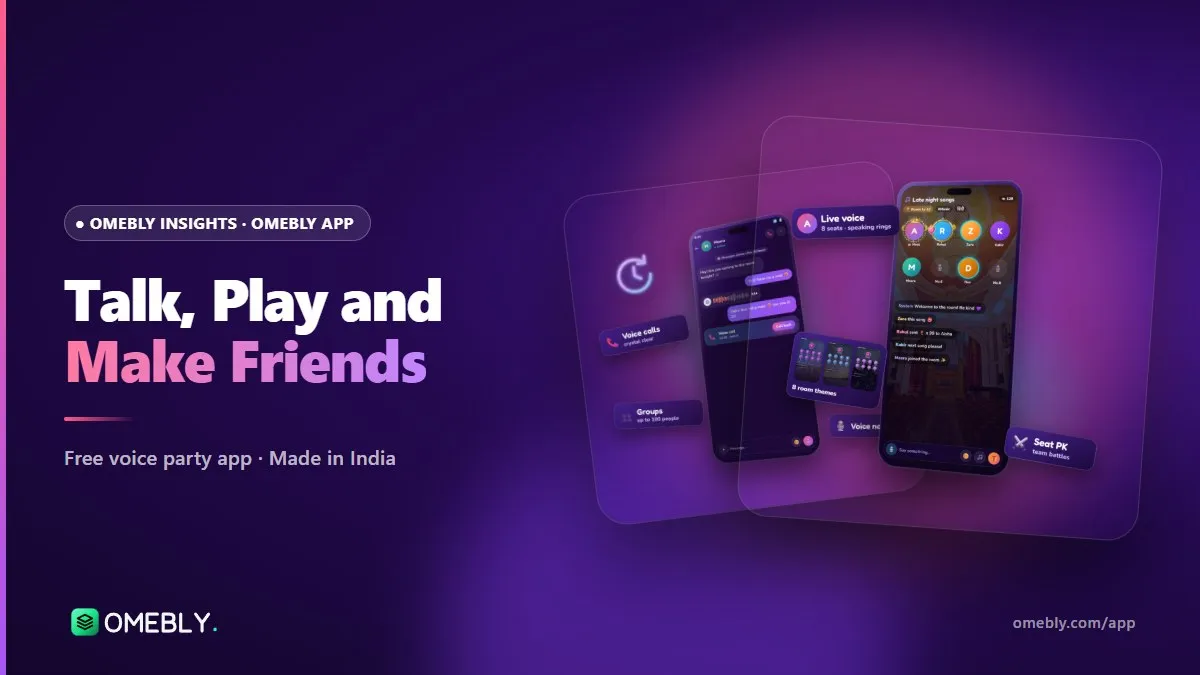
What Moments is (and why it lives next to voice rooms)
Omebly is built around live voice rooms: you take a seat, talk, play Ludo or chess, and watch videos together. Rooms are live, so when the room closes, the moment is gone.
Moments fills the gap between rooms. It’s where you:
- Keep up with people you met in a room last night
- Share your day with a photo set or a short clip
- Say something in your own voice when you can’t join a room
- Find new people whose posts you enjoy, then meet them in a room
If you’re new to the app itself, start with our overview of the Omebly voice chat room app, then come back here.
The four kinds of Moments you can post
| Type | What you can share | Good for |
|---|---|---|
| Voice note | A recorded clip in your own voice | Greetings, stories, a song line, a question for friends |
| Photos | Up to 9 photos in one post | Trips, festivals, food, a day out |
| Video | A clip of up to 1 minute | A quick view, a dance step, a festive moment |
| Text | Words on a colour background | Thoughts, quotes, announcements for your room |
Voice notes: the heart of a voice app’s feed
A voice note does what text can’t. People hear your tone, your accent and your laugh. For many users that feels more personal and less performative than a polished photo.
Ideas that work well as voice notes:
- A good-morning or good-night message to people you follow
- A short story from your day, under a minute
- A question: “Which room should I host this weekend, music or chess?”
- A line from a song you’ve been humming (keep it short and your own singing)
- A greeting in your language. Omebly is built for 13 languages, including Bengali, Hindi, Tamil, Telugu, Malayalam, Kannada, Marathi, Gujarati, Punjabi and Arabic, so you can post in the one you’re most at home in
Photo Moments: up to 9 at once
A set of photos tells a fuller story than one. Pick your best few in order: a wide shot to set the scene, then details, then the people (with their permission). Nine is the limit, not the target.
Video Moments: one minute is plenty
Videos can be up to one minute. That’s enough for a quick clip, and short enough that friends watch to the end. Start with the most interesting second, not a slow pan.
Text Moments on colour backgrounds
Not every thought needs a picture. A bold line of text on a colour background works for a quote, a “hosting a chess room at 9 tonight” note, or a thank-you to a room that made your week.
How to post a Moment, step by step
- Open the Omebly App and tap Create (+).
- Choose Post a moment.
- Pick your format: record a voice note, add up to 9 photos, add a video of up to 1 minute, or type text and choose a colour background.
- Add a caption if it helps. Short is fine.
- Choose who can see it. You decide this for every post.
- Post. Your Moment appears in the feed, and your latest Moments show on your profile card.
Pin a Moment to your profile
Got one Moment that says “this is me”? Pin it to your profile so it’s the first thing people see when they look you up. A short voice introduction makes a great pinned Moment: your name (first name is enough), your languages and the kind of rooms you enjoy.
How people see and react to your Moments
Following and Popular feeds
Open Explore > Moments and you’ll find two feeds:
- Following: Moments from people you follow. This is your friends’ feed, made for the people you already know from rooms.
- Popular: Moments getting attention from people who use Omebly in your languages. It’s a good way to discover new voices.
Reactions, comments and replies
- Six animated reactions let people respond without typing. Double-tap a Moment to love it.
- Comments and replies turn a Moment into a conversation.
- Reposts with your own words let you share a friend’s Moment with your own comment on top.
Profile cards
When someone taps you in a room, live or chat, your profile card opens. It shows your latest Moments alongside your relationships, family and medals. So your Moments quietly introduce you to the people you meet in rooms.
Share to WhatsApp
You can share a Moment to WhatsApp, which is handy when you want friends who aren’t on Omebly yet to see something, or to invite them to a room you’re hosting.
Moments ideas for the week
If you’re not sure what to post, borrow one of these:
| Day | Moment idea |
|---|---|
| Monday | Voice note: “One thing I want to do this week is…” |
| Tuesday | Text Moment: tonight’s room time and topic |
| Wednesday | Photo set: your workspace, desk or study corner |
| Thursday | Voice note: recommend a song or film, and say why |
| Friday | Video: a 30-second clip of your evening |
| Saturday | Repost a friend’s Moment with your own words |
| Sunday | Voice note: a thank-you to the people from this week’s rooms |
During festivals, Moments are a natural place to share lights, food and family (with permission), and to invite friends to a festive room.
Privacy and safety in Moments
Moments are social, so a few habits keep them fun.
Choose the audience on every post
You choose who can see each Moment. A broad post is fine for “hosting antakshari tonight”. Keep personal photos and voice notes for a closer circle.
Don’t share what you wouldn’t say to a stranger
- No phone numbers, home addresses, school or office names
- No photos showing your house number, car number plate or school uniform
- Ask before posting photos or videos of other people, especially children
Built-in protection
- A nudity filter automatically checks Moments, as well as profile photos, chat photos and live cameras.
- Block, report or hide anyone in two taps. You never need to explain.
- Only people you follow can message you directly; others wait in Requests.
- Omebly is 16+ only, and 16 and 17-year-olds get extra protection in chats, groups, comments and rooms.
For the full set of tools, read our safe voice chat guide.
Mistakes to avoid with Moments
- Posting long voice notes. Keep most under a minute. People listen to short clips all the way through.
- Recording in a noisy place. Step away from the fan, the TV or the traffic. Hold the phone a little below your mouth so it doesn’t pick up breath sounds.
- Using the 9-photo limit every time. Three great photos beat nine similar ones.
- Posting only to Popular-style audiences. Moments work best as part of friendships, so post for the people you follow too.
- Copying other people’s content. Post your own voice, photos and videos. Reposts with your own words are the friendly way to share someone else’s Moment.
How Moments helps you make friends
Moments works best alongside rooms. Meet someone in a room, follow them, and their voice notes and photos keep you connected until the next room. Comment on a Moment, and you’ve got an easy opener next time you share a seat. Our guide to making friends online through voice rooms covers the full routine, from your first room to keeping in touch safely.
How Omebly can help
Omebly is a free voice party app built in-house in Kolkata with Flutter and real-time servers. Moments, voice rooms, messages, Ludo and chess are all in the Android test app today, for users aged 16 and over. Download it from the Omebly App page, and send feedback or questions through our contact page.
Your first-Moment checklist
- Open Create (+) and choose Post a moment
- Record a short voice introduction in your own language
- Choose who can see it
- Pin it to your profile
- Follow three people from your favourite room
- React to or comment on one of their Moments
Your voice is the best introduction you have: get Omebly free at omebly.com/app/ and post your first Moment.
Frequently asked questions
What can I post in Omebly Moments?
You can post text on a colour background, up to 9 photos, a voice note, or a video of up to one minute. You can also repost someone's Moment with your own words added.
Can I control who sees my Moments?
Yes. You choose who can see each post before you share it, so a Moment can be for a wider audience or kept closer to people you know.
Where do I find Moments in the app?
Open Explore and tap Moments to see the feed. To post, tap Create (+) and choose Post a moment.
What is the difference between the Following and Popular feeds?
Following shows Moments from people you follow. Popular shows Moments that are getting attention from people who use the app in your languages.
Are Moments checked for unsafe content?
Yes. A nudity filter automatically checks Moments, as it does profile photos, chat photos and live cameras. You can also block, report or hide someone in two taps.
Is Omebly free, and who can use it?
Omebly is free and is for people aged 16 and over. It is in testing on Android and you can download it from omebly.com/app/.

Written by
Nazmul Hussain, Managing Director & Technical Head, Omebly. 10+ years building websites and apps for clients in India, the Gulf, the UK and the US, and mentoring at Omebly Academy. LinkedIn · GitHub
Follow Omebly
New guides, work and launches on every channel.