Everything File Explorer does, plus tabs, a viewer for every file, the 51 Omebly PDF tools on the right-click menu, ZIP and 7Z, copying up to 18x faster, folder colours, tags, duplicates and a disk space map.
Download the installer above. Most PCs need the normal one. If yours has a Snapdragon or other ARM processor, use the ARM one (Settings > System > About shows which you have).
Open the file. If Windows says "Windows protected your PC", click More info, then Run anyway. That message shows for new apps that aren't downloaded by many people yet.
Click Install. It installs for your account only and needs no admin password. Omebly Explorer then opens, and it's in your Start menu.
Everything File Explorer has
Tabs, the path bar, 9 views, 24 columns, Undo, the Recycle Bin, and Windows' full right-click and New menus.
PDF tools, right-click away
Merge, split, convert, compress, sign, protect, OCR and more on any PDF, with no internet and no Word.
Find anything
Instant search of the whole PC by name, search inside files, duplicates, big files and a disk space map.
Updates in one click
A pop-up when a new version is out. One click downloads it, checks the signature, installs and reopens.
How to use Omebly Explorer
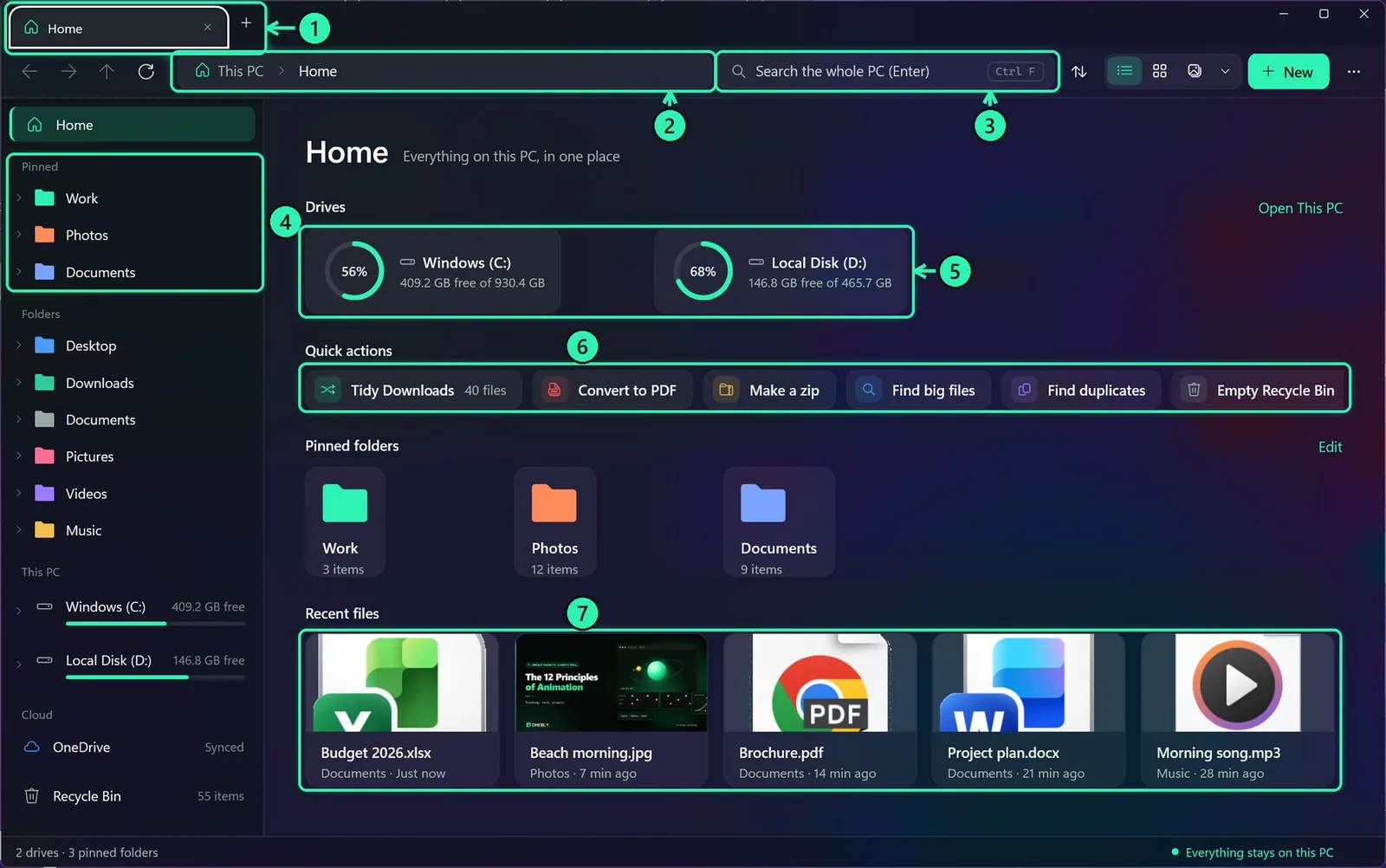
A full guide, part by part. Each picture is from the real app: the numbers point to the parts explained under it.
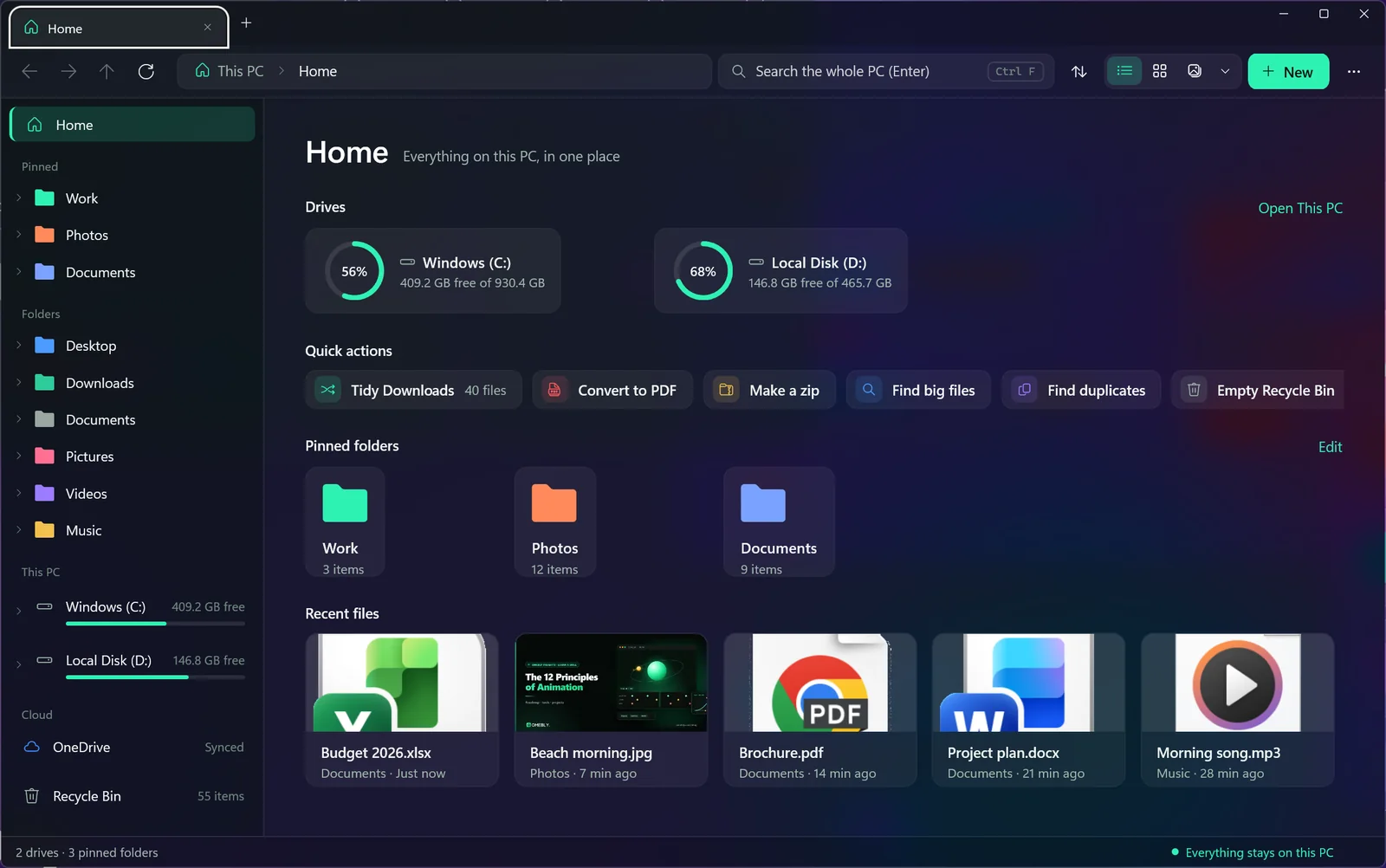
1Home
1Tabs: many folders in one window
2Path bar: click a folder or type a path
3Search the whole PC
4Your pinned folders
5Drives and free space
6Quick actions
7Files you opened lately
Home is where Omebly Explorer opens. It shows your drives, the folders you pinned, the files you opened lately and one-click actions.
Pin a folder: right-click any folder and choose Pin to Home. Right-click a pinned folder to unpin it or change its colour.
Quick actions: tidy your Downloads folder, turn files into a PDF, make a ZIP, find big files or duplicates, or empty the Recycle Bin, in one click.
Recent files are the files you opened lately, from any app. You can turn this off in ⋯ > Folder options.
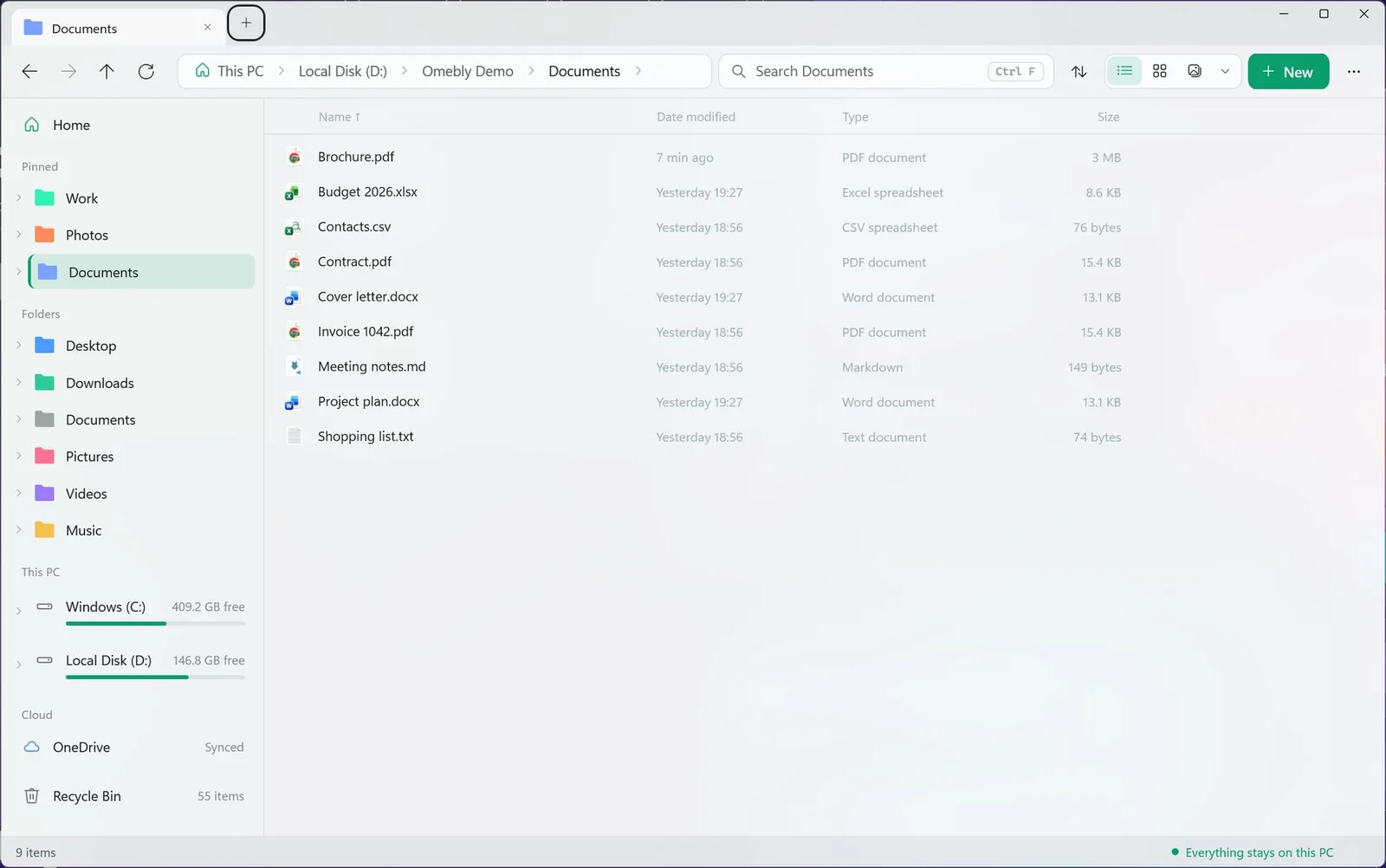
2Finding your way around a folder
1Where you are
2Change the view
3Click a column to sort; right-click for more columns
4Your Windows folders
5What is selected, and its size
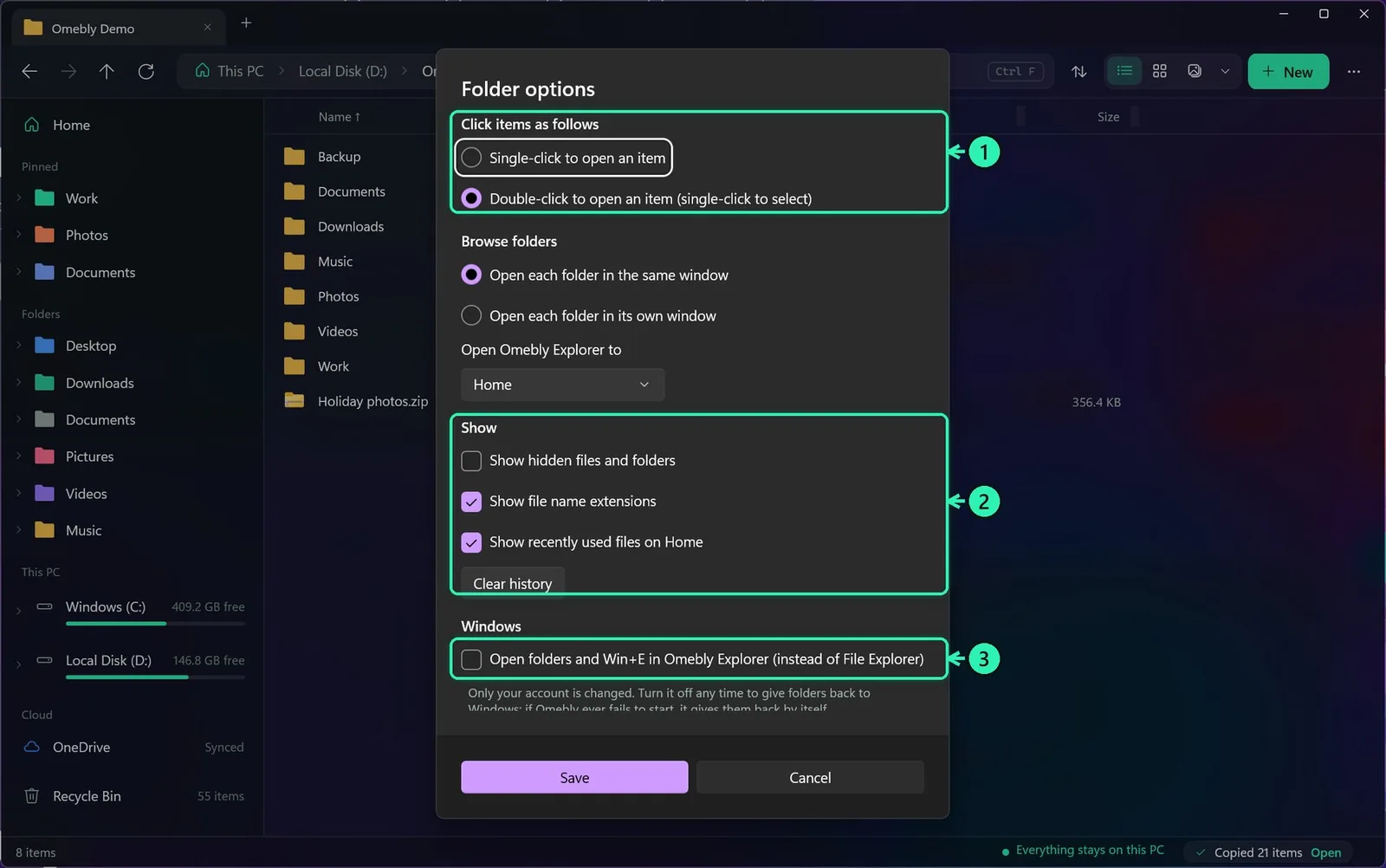
Open a folder or file with a double-click, or select it and press Enter. Prefer one click? Change it in ⋯ > Folder options.
Go back and forward with the arrows at the top left, Alt+← and Alt+→, Backspace, or the side buttons on your mouse. Alt+↑ goes up one folder.
Type a path: click the empty part of the path bar (or press Ctrl+L), type something like D:\Work and press Enter.
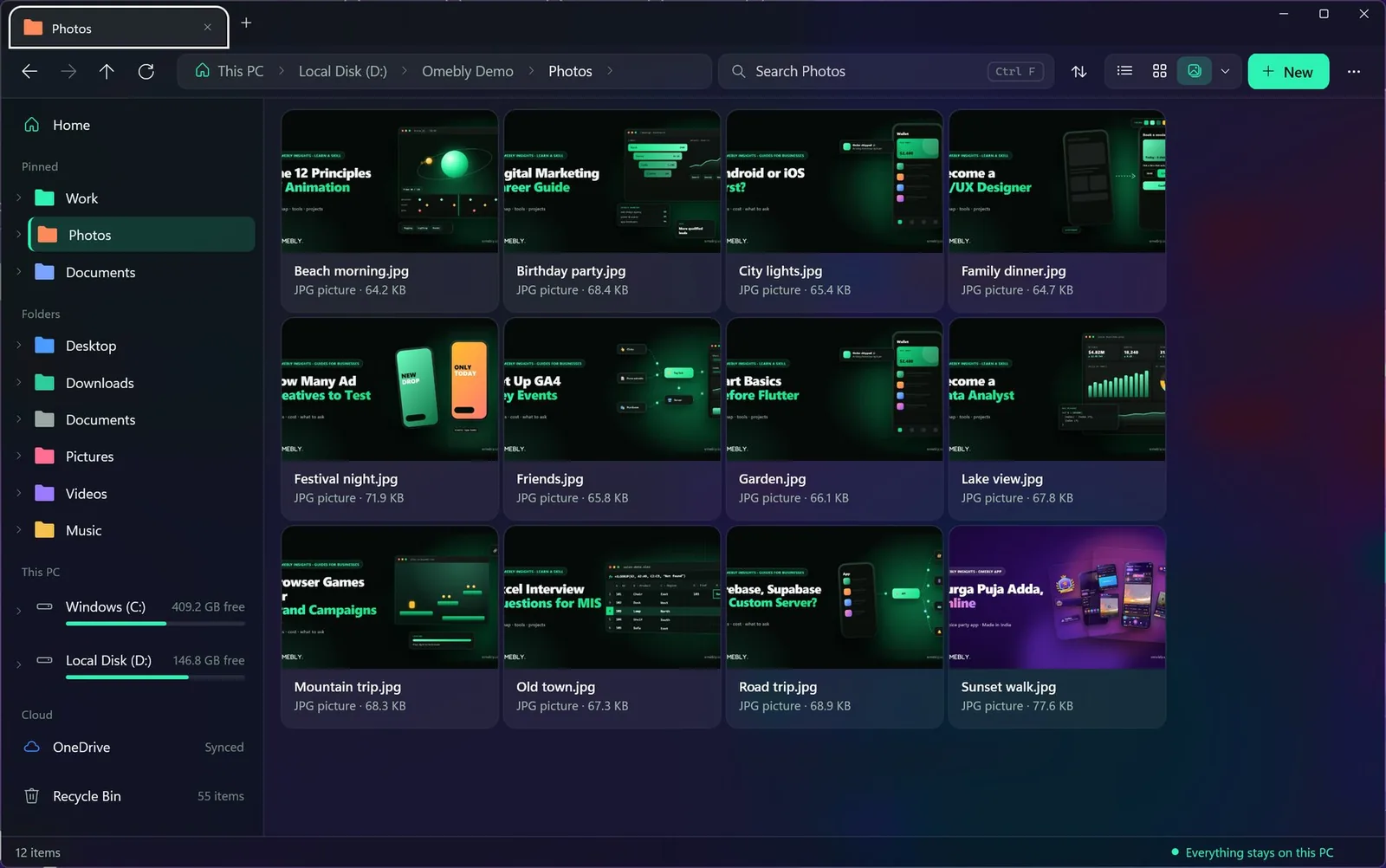
Views: Details, List, Tiles, Gallery and four icon sizes. Ctrl+mouse wheel changes the size, and each folder remembers its own view.
Columns and sorting: click a column to sort, and click again to reverse. Right-click the header to add any of 24 columns (dimensions, length, artist, date taken and more). All views > Group by groups by type, date or size, and Show only keeps just pictures, videos, documents or this week's files.
Hidden files and file extensions: both are in the ⋯ menu. Extensions are shown by default, so a file called photo.jpg.exe can't fool you.
Gallery view shows big pictures, which is perfect for photo folders.
3Tabs and windows
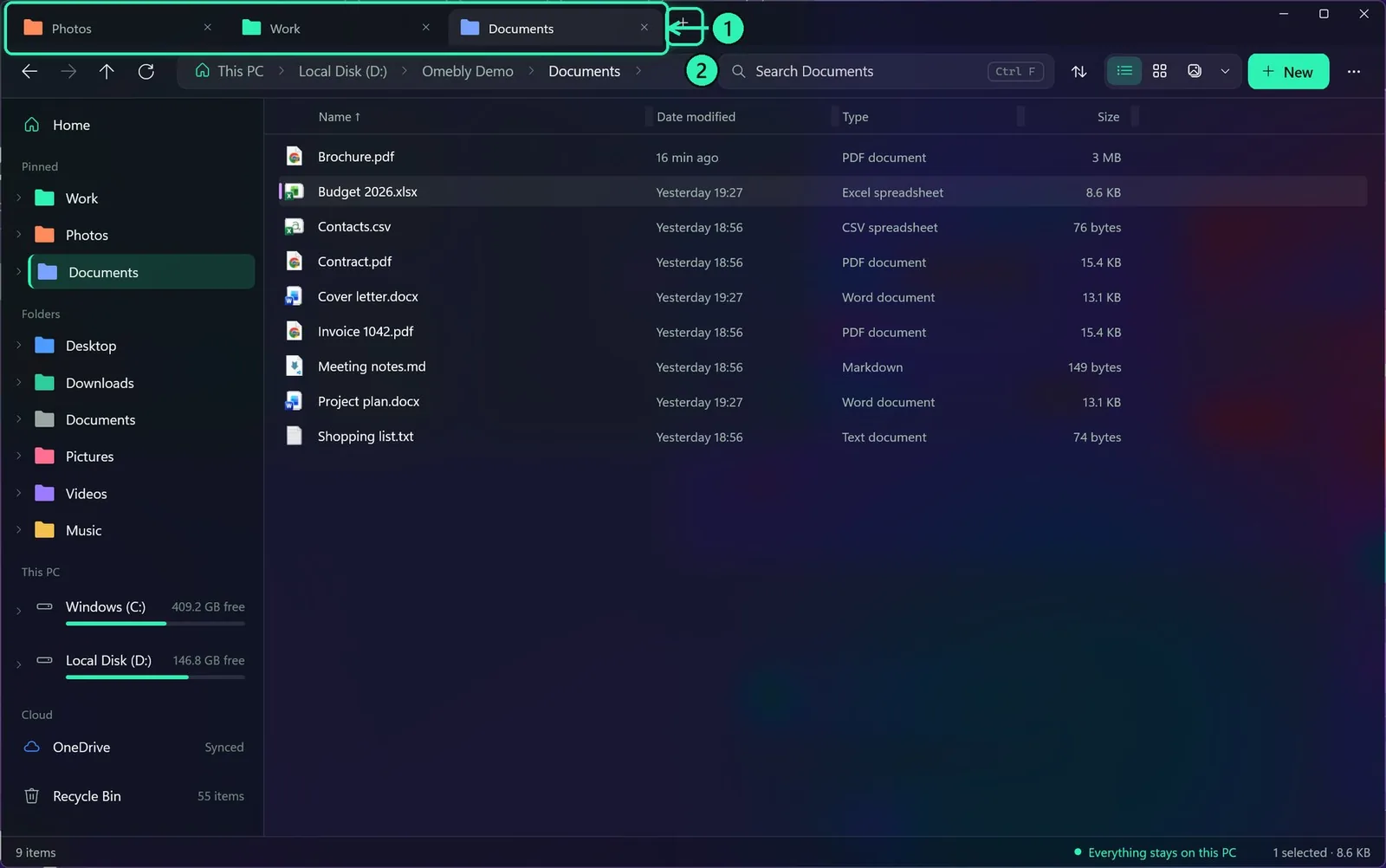
1Each tab is a folder; drag a tab out for its own window
2New tab (Ctrl+T)
New tab: the + button or Ctrl+T. Middle-click a folder to open it in a new tab. Ctrl+W closes a tab, and Ctrl+Shift+T brings back the one you just closed.
Switch tabs with a click, or with Ctrl+Tab. Drag a tab out of the strip to give it its own window. Ctrl+N opens a new window.
Workspaces: save the tabs you have open (All views > Workspaces) and open the whole set again later in one click.
4Opening files without leaving the app
1Zoom, rotate, copy, delete, open, full screen
2Next and previous (arrow keys)
3Every picture in the folder
4Keyboard keys, always shown
Double-click a file and it opens in a pop-up viewer inside Omebly Explorer. Press Space for a quick look and Esc to close it.
Pictures (JPG, PNG, GIF, WebP, HEIC, SVG, BMP, ICO and more): zoom with + and − or the mouse wheel, rotate with R and fit with 0. The arrow keys go through every picture in the folder.
1Pages
2Go to a page, zoom
3Print, copy, delete, open in its app
PDF: pages down the side, page numbers, zoom and print. Home and End go to the first and last page.
1Subtitles (an .srt next to the video)
2Drag to jump
3Play, back, forward
4Volume, speed, subtitles on/off
Video and music (MP4, MKV, MOV, MP3, WAV, FLAC and more): Space plays and pauses, the arrows skip 5 seconds, and F is full screen. Put an .srt file with the same name next to a video to see its subtitles.
Also inside: Word, Excel and PowerPoint (a read-only preview). Text and code are coloured by language: press E to edit and Ctrl+S to save. Markdown, CSV tables, web pages (with their scripts off), fonts and archives open too. Ctrl+Page Down goes to the next file.
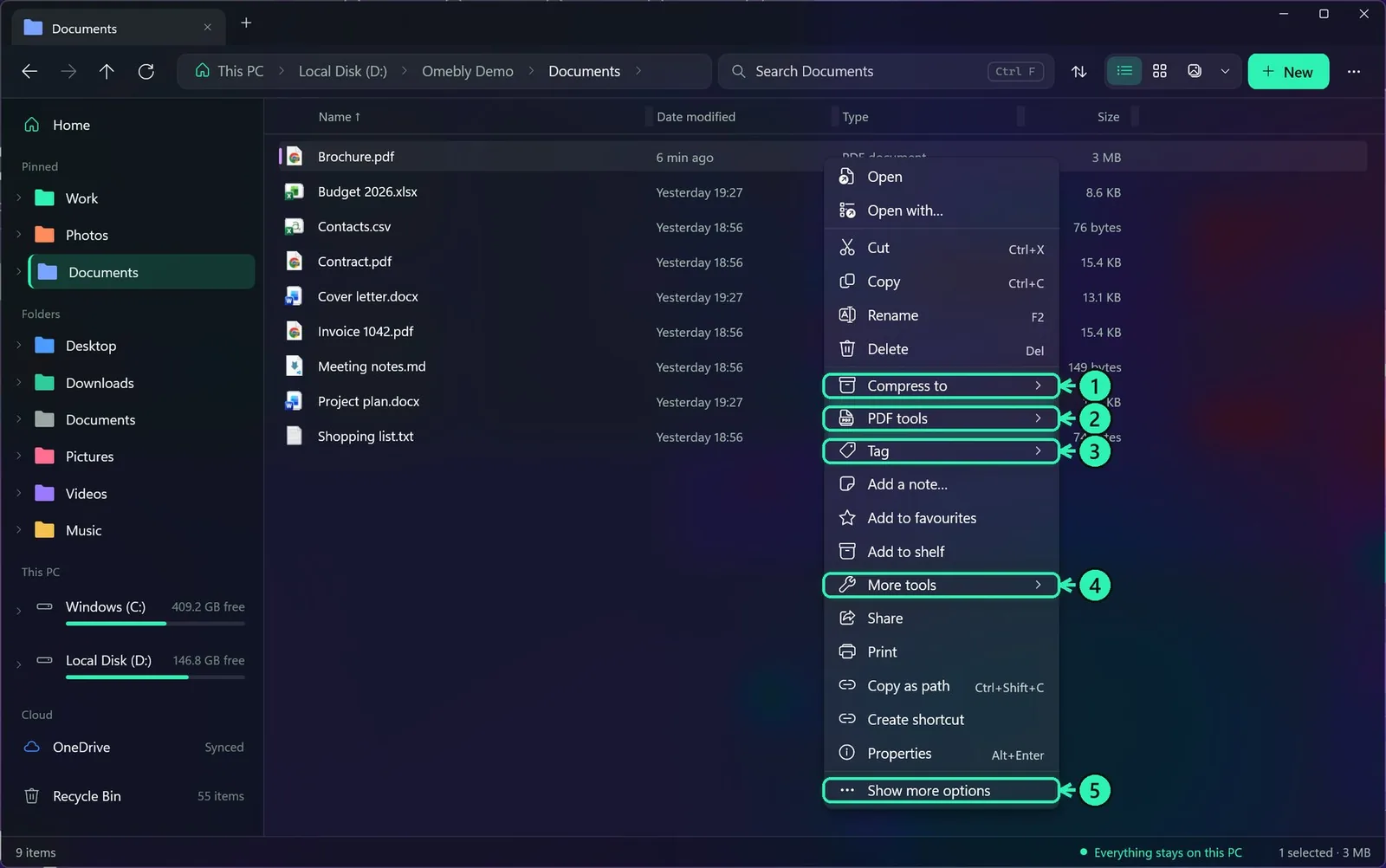
5The right-click menu
1Make a ZIP
2All the PDF tools
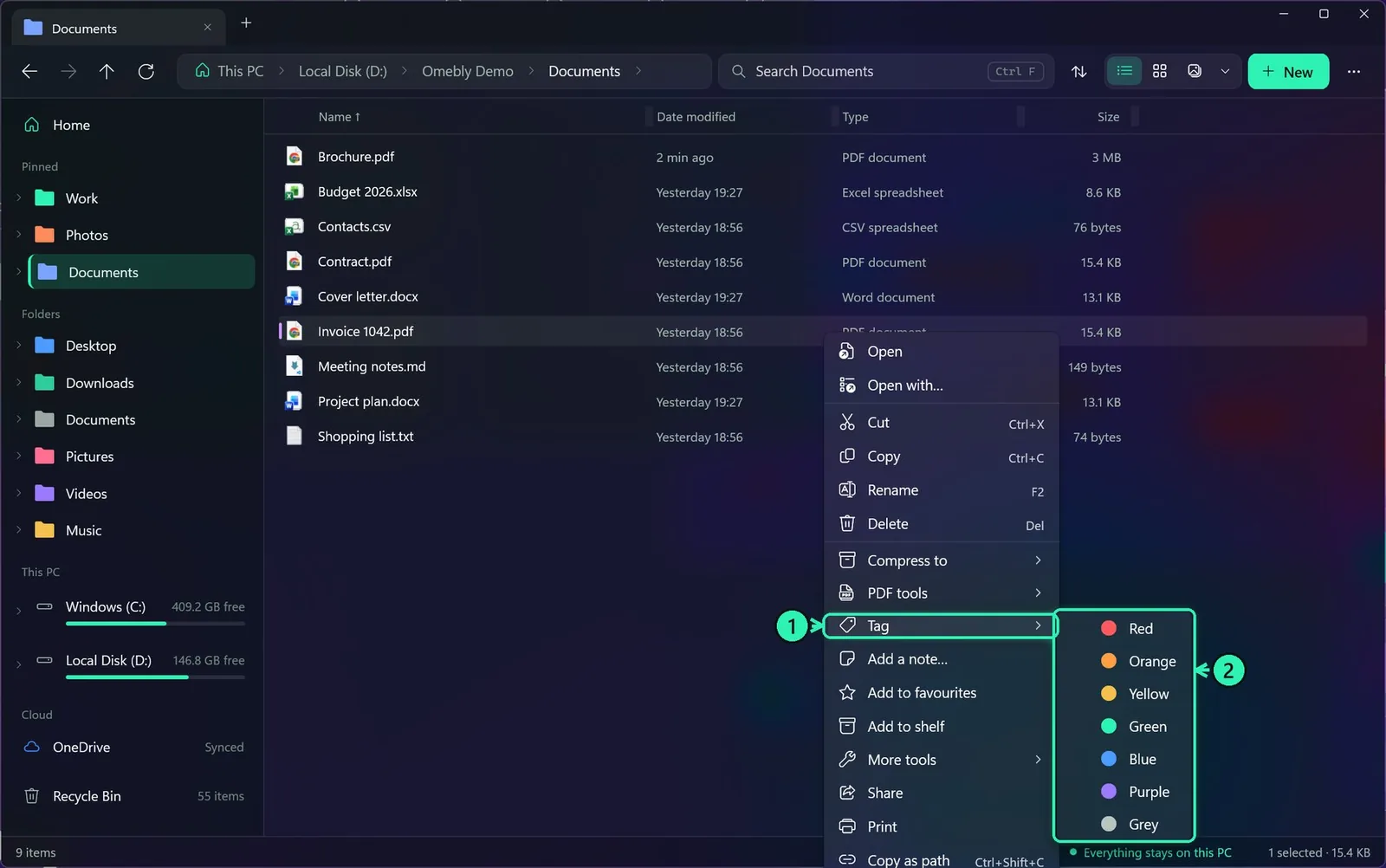
3Colour tags
4Lock, shred, permissions and more
5Windows' own full menu
Right-click any file or folder. The most useful things are on the first menu, and Windows' own full menu is still there under Show more options.
Also on the menu: Open with, Cut, Copy, Rename (F2), Delete (Del sends it to the Recycle Bin; Shift+Del asks, then deletes for good), Add a note, Add to favourites, Add to shelf, Share, Print, Copy as path, Create shortcut and Properties (Alt+Enter).
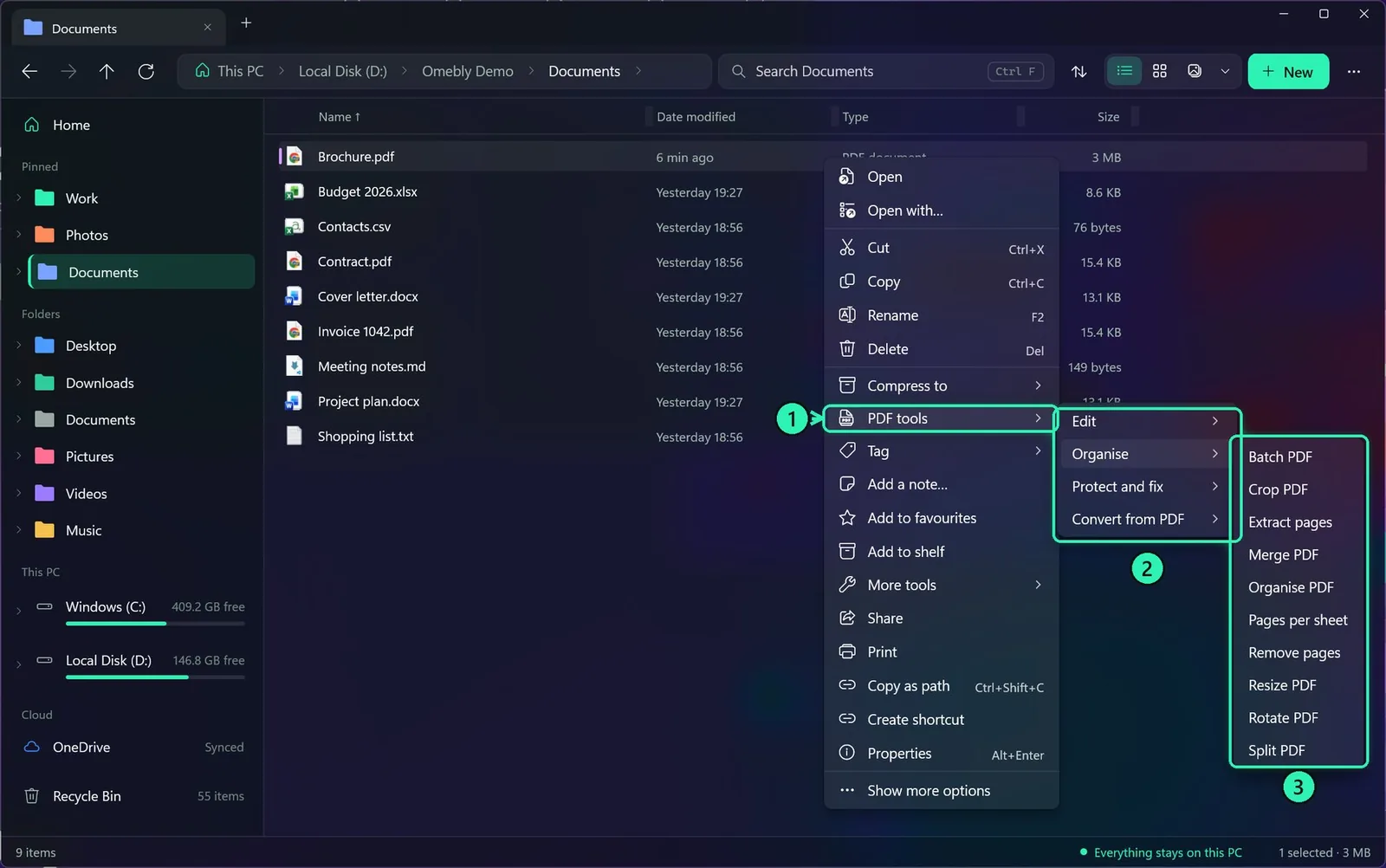
6PDF tools on the right-click menu
1PDF tools, on any PDF
2Grouped by what you want to do
3Pick one: it opens in its own window
Right-click any PDF (or a Word, Excel, picture or web page file) and choose PDF tools. They are the same 51 tools as on Omebly Tools, built into the app. They work with no internet, upload nothing, and don't need Microsoft Word.
Organise: merge, split, extract or remove pages, reorder, rotate, pages per sheet, resize, crop and batch.
Convert from PDF: to Word, Excel, PowerPoint, JPG, PNG, text, Markdown, EPUB and PDF/A, or extract the images.
Convert to PDF: from Word, Excel, PowerPoint, JPG and other pictures, web pages, Markdown, text and EPUB, or from a scan.
Edit: the PDF editor, sign, watermark, page numbers, header and footer, Bates numbering, bookmarks, metadata, fill and create forms, redact, remove comments, flatten and greyscale.
Protect and fix: add or remove a password, compress, optimise for the web, repair, OCR (make scans searchable) and compare two PDFs.
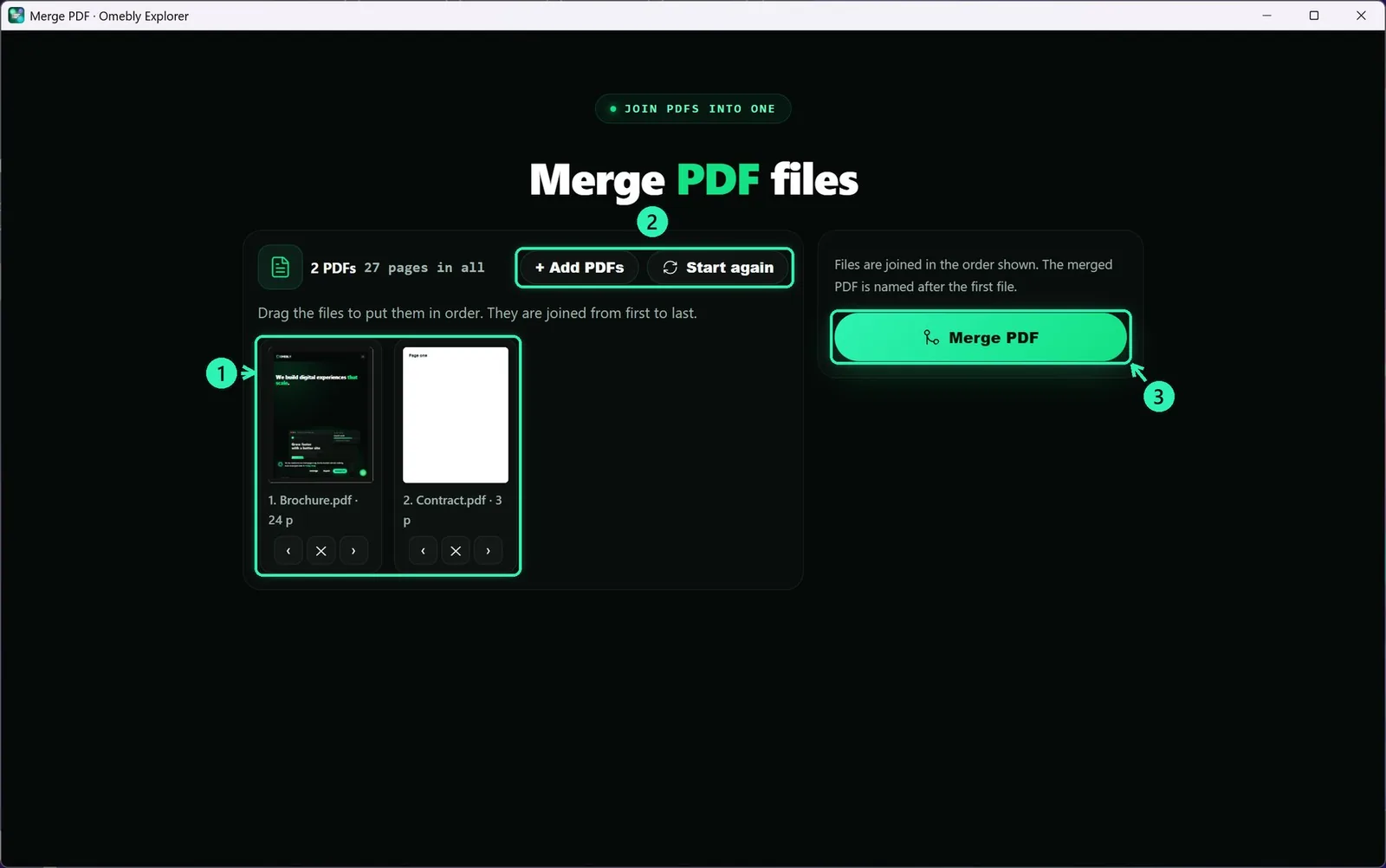
1Your files are already loaded
2Add more or start again
3One click: the result is saved next to the original
The tool opens with your file already loaded. Click the main button, and the result is saved next to the original with a new name, so nothing is ever overwritten. Ctrl+Z in Omebly Explorer takes it away again.
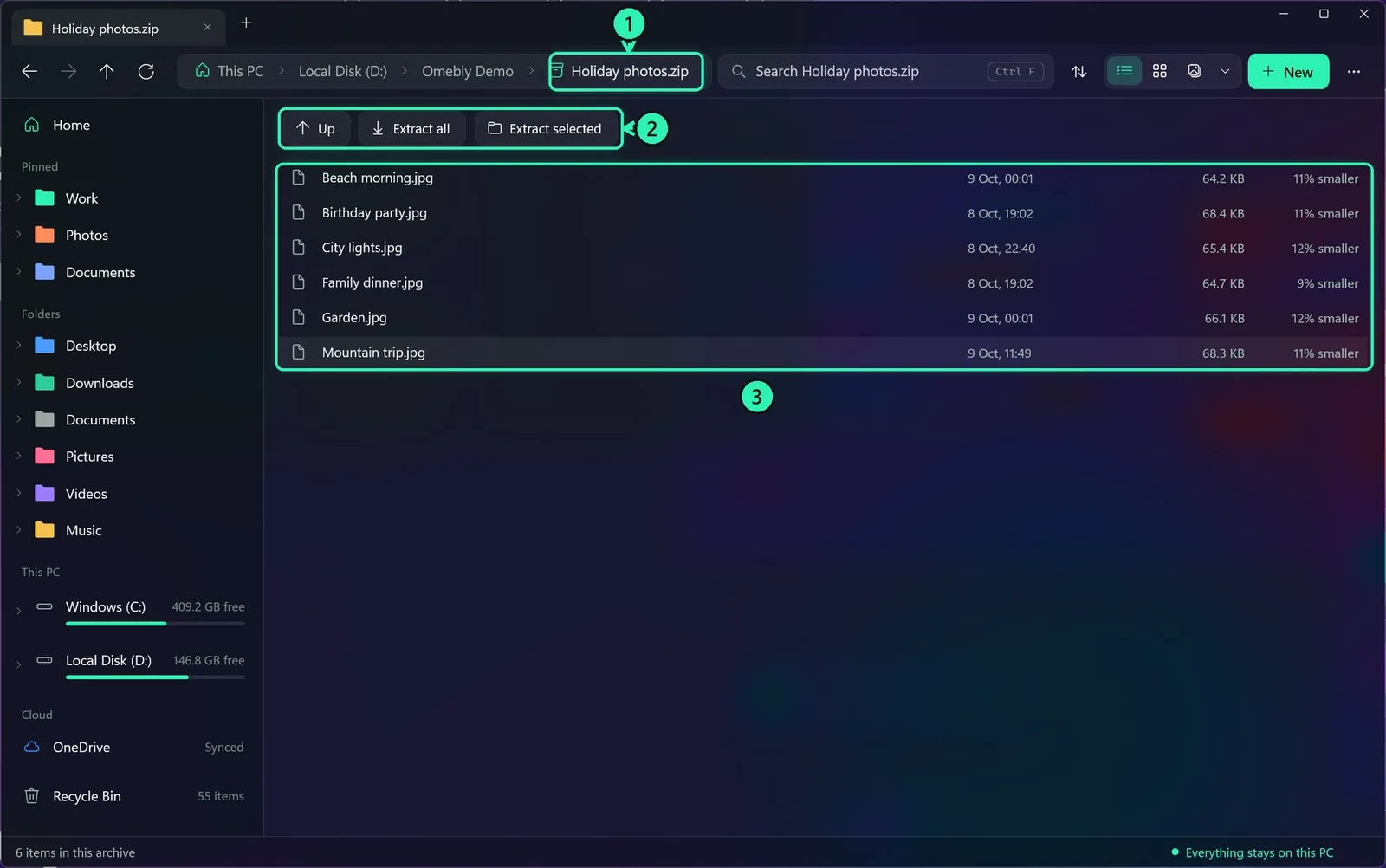
7ZIP, 7Z, RAR and other archives
1A ZIP opens like a folder
2Extract all, or only what you picked
3Look inside without unzipping
Double-click a ZIP, 7Z, RAR, TAR or GZ file and it opens like a folder. Double-click a file inside to open it without extracting anything.
Extract:Extract all or Extract selected, or right-click the archive and choose Extract here. Password-protected archives ask for the password.
Make one: select files, right-click, Compress to, and pick ZIP (with an optional AES-256 password), TAR or TAR.GZ.
An archive can never write outside the folder you chose, and "zip bombs" (tiny files that expand into terabytes) are stopped.
8Copying and moving
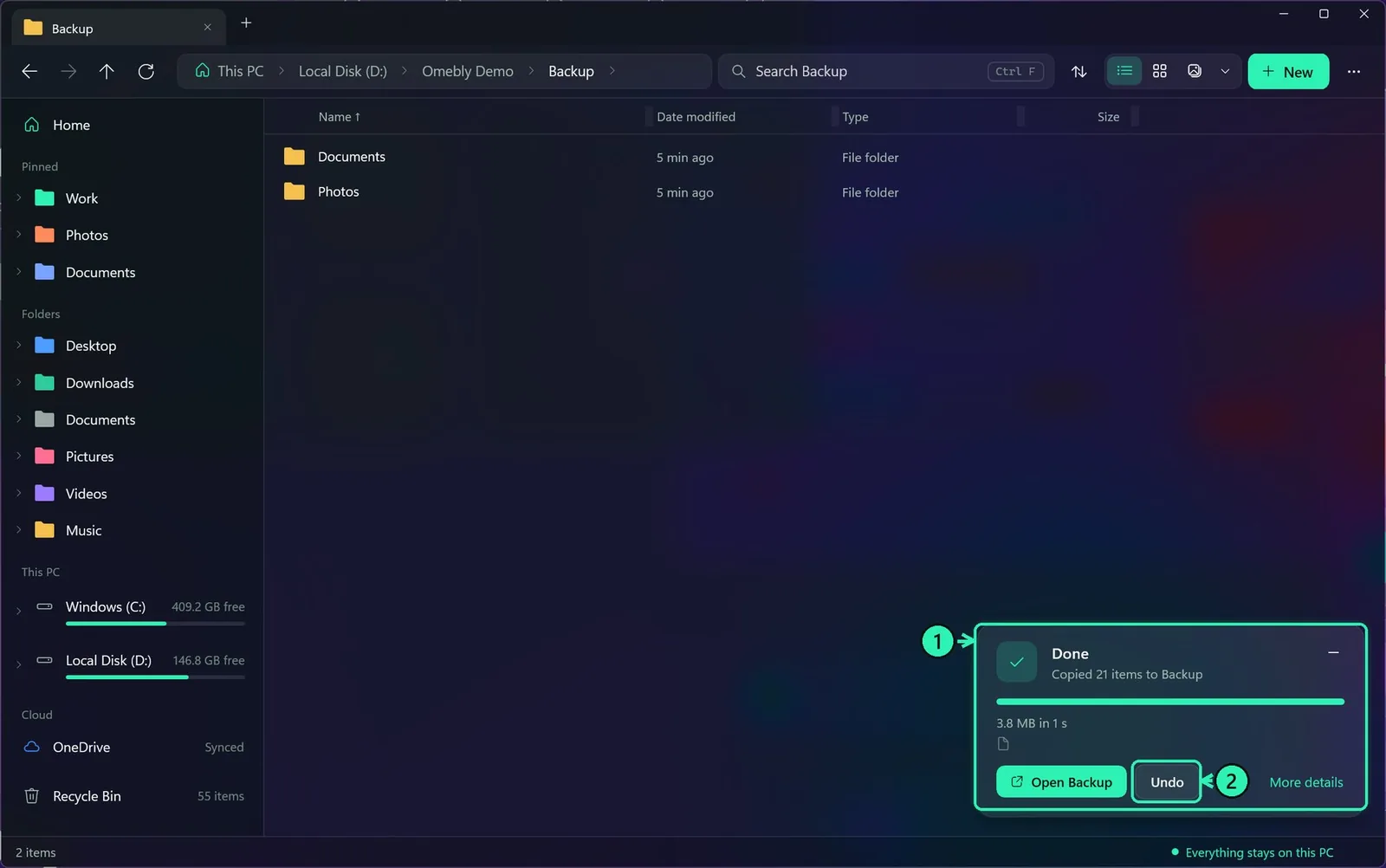
1Progress, speed, pause; Done when finished
2Undo puts everything back
Use Ctrl+C, Ctrl+X and Ctrl+V, or drag and drop (hold Ctrl to copy, Shift to move and Alt to make a shortcut).
A card shows the speed, the time left and the file it's on. You can pause, resume or cancel. If files with the same names are already there, it asks once for all of them: replace, skip, keep both, or decide one by one.
Undo:Ctrl+Z undoes copies, moves, renames, deletes and new folders, and Ctrl+Y redoes them.
Fast: thousands of small files copy up to 18 times faster than in Windows.
9Searching
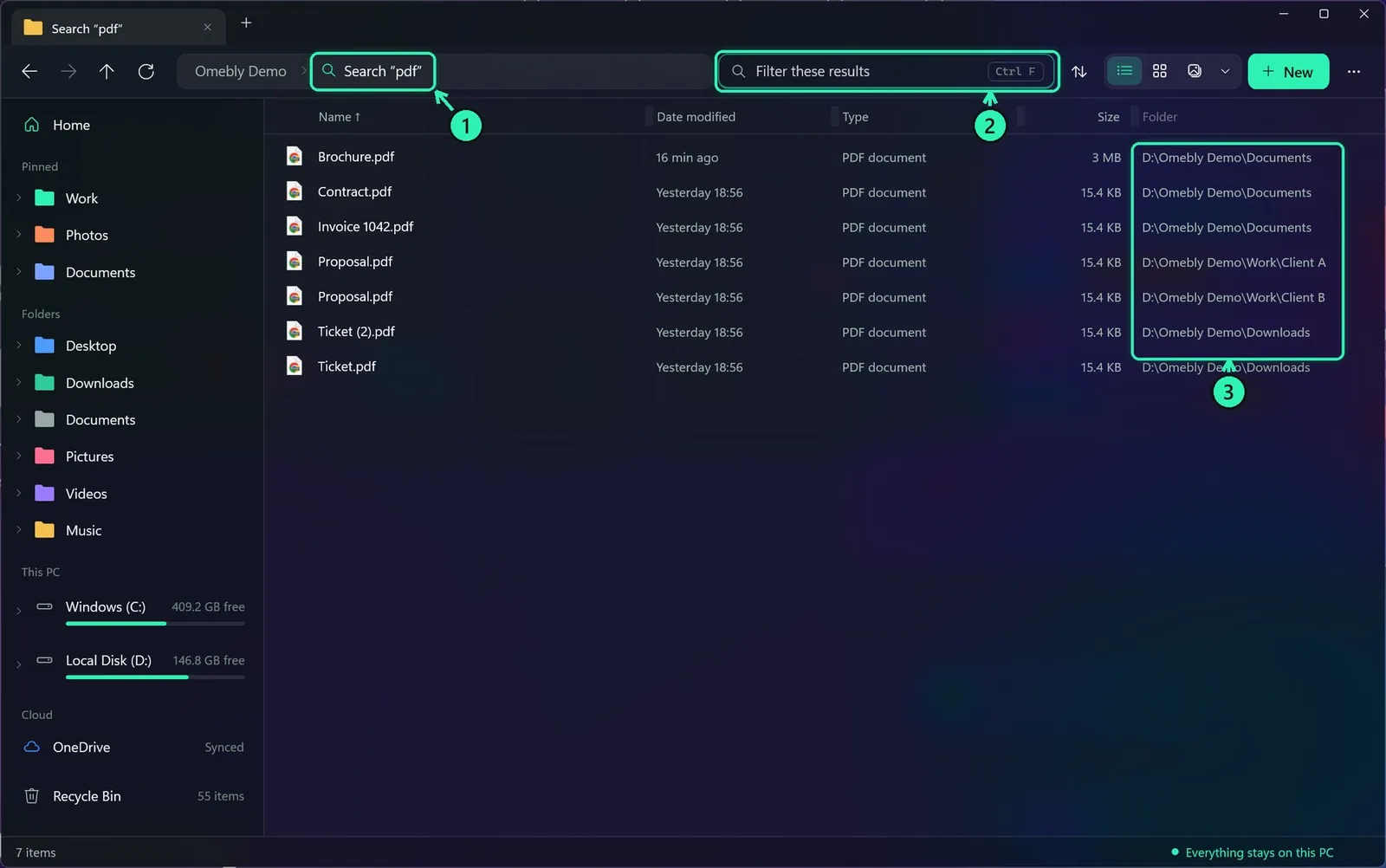
1Results from every folder inside
2Narrow the results
3Where each file is
In a folder: type in the search box and the list narrows as you type. Press Enter to search this folder and every folder inside it, including the words inside text files, documents and code.
The whole PC: search from Home. Omebly keeps its own index of file names, so results come instantly.
10The command bar
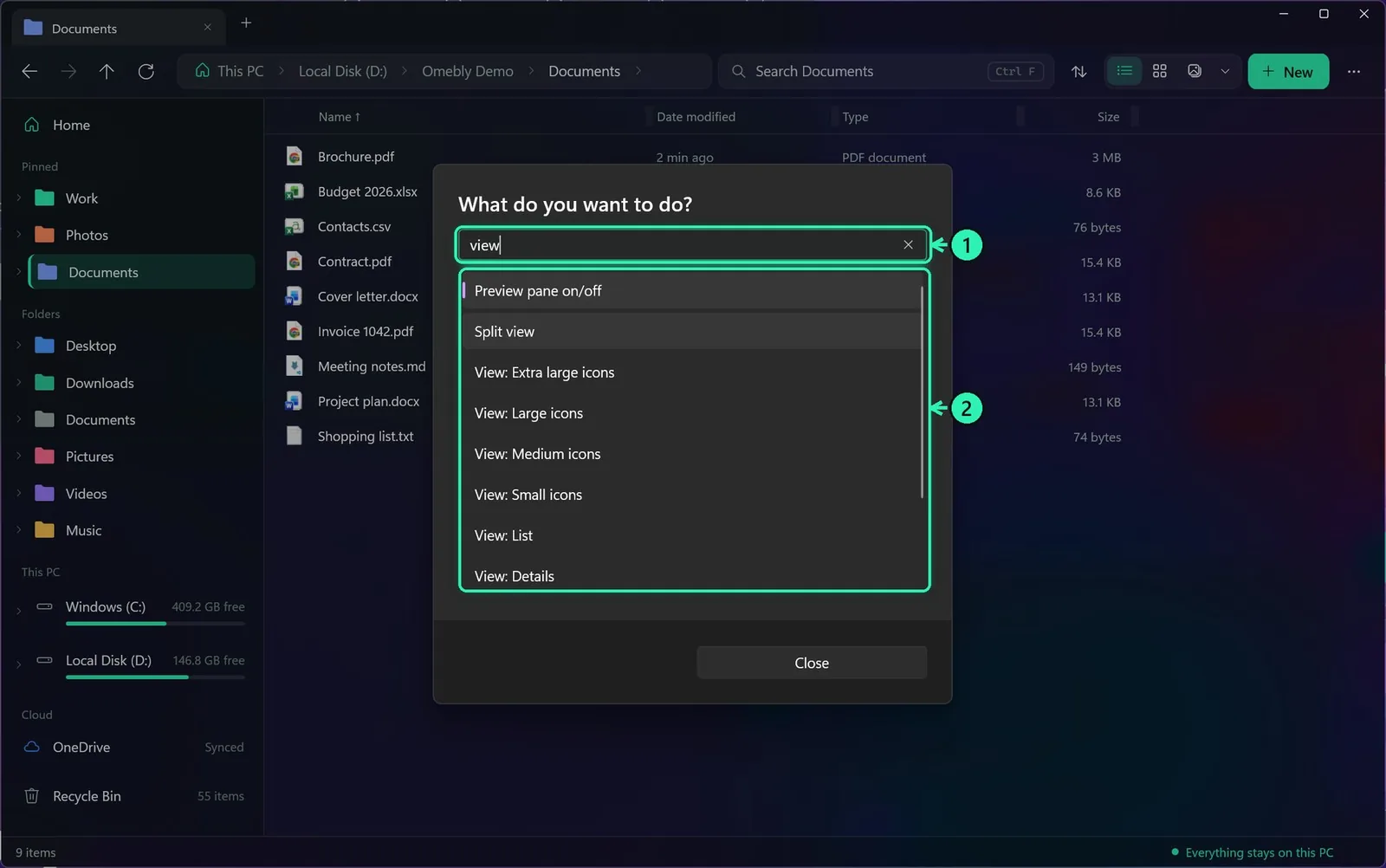
1Ctrl+K, then type what you want
2Pick it and press Enter
Press Ctrl+K, type what you want to do, and press Enter. It's the fastest way to anything: change the view, open a pinned folder, turn on the preview pane, switch theme, open Tools, zip what you selected, and more.
11Folder colours, tags and more ways to organise
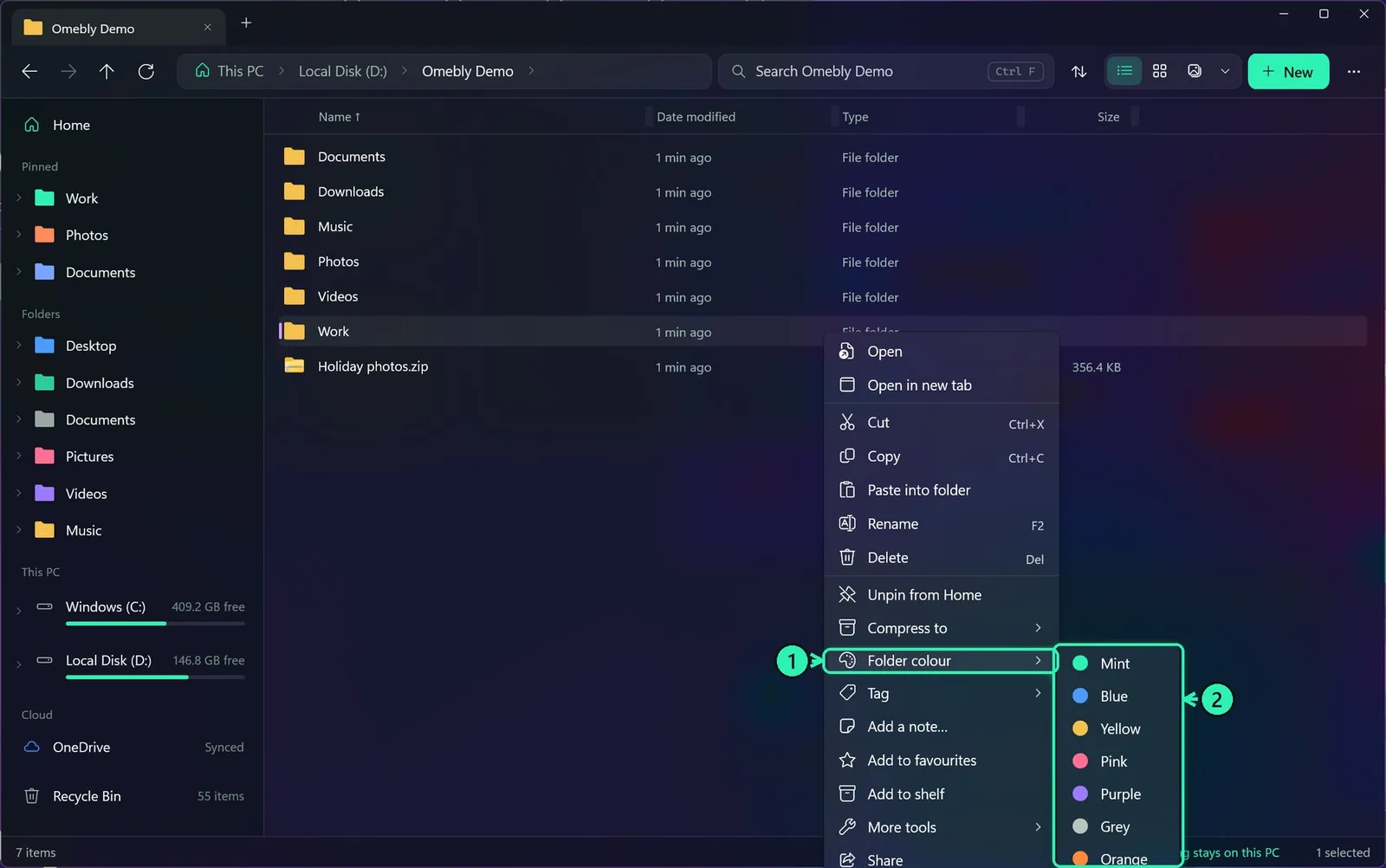
1Right-click a folder, Folder colour
2Windows shows the colour too
Folder colours: right-click a folder, choose Folder colour, and pick one. Windows' File Explorer and the Open and Save windows show the colour too.
Notes keep a short note on any file or folder. Favourites are files you use all the time, kept in the sidebar.
The shelf is a holding place for files you're gathering from different folders, so you can copy or move them all at once.
Templates save a set of folders (for example Client > Invoices, Photos, Contracts), and New from template makes the same set anywhere. Tidy up sorts a messy folder into Pictures, Documents, Videos and other folders, and Undo puts it all back.
1Right-click, Tag
2Tagged files are one click away in the sidebar
Tags: right-click any file, choose Tag, and pick a colour. Click the tag in the sidebar to see every file with it, from every folder.
12Renaming many files at once
1New name: {n} is a number
2Find and replace, add text, numbers
3See every new name before you rename
4Rename (Undo works too)
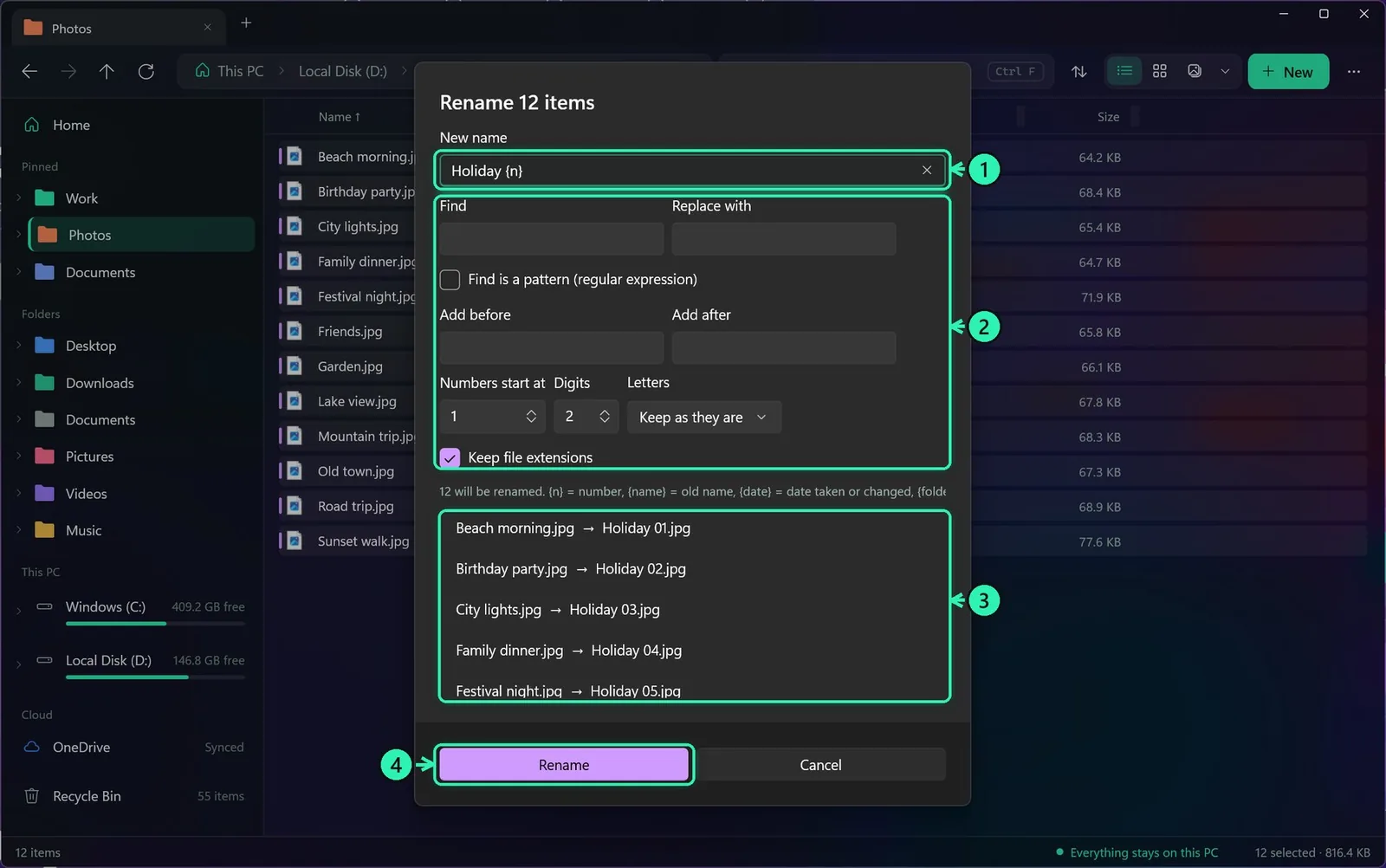
Select several files and press F2.
Holiday {n} gives Holiday 01, Holiday 02, …. {name} keeps the old name, {date} adds the date the photo was taken (or the date it changed), and {folder} adds the folder's name.
You can also find and replace (patterns too), add text before or after, choose where the numbers start, and change the letters to UPPER, lower or Title case. Every new name is shown before anything changes, and Ctrl+Z undoes it.
13Tools: duplicates, disk space, clean-up, compare, rules, backup
1Clean up
2Compare and sync two folders
3Rules and backups that run by themselves
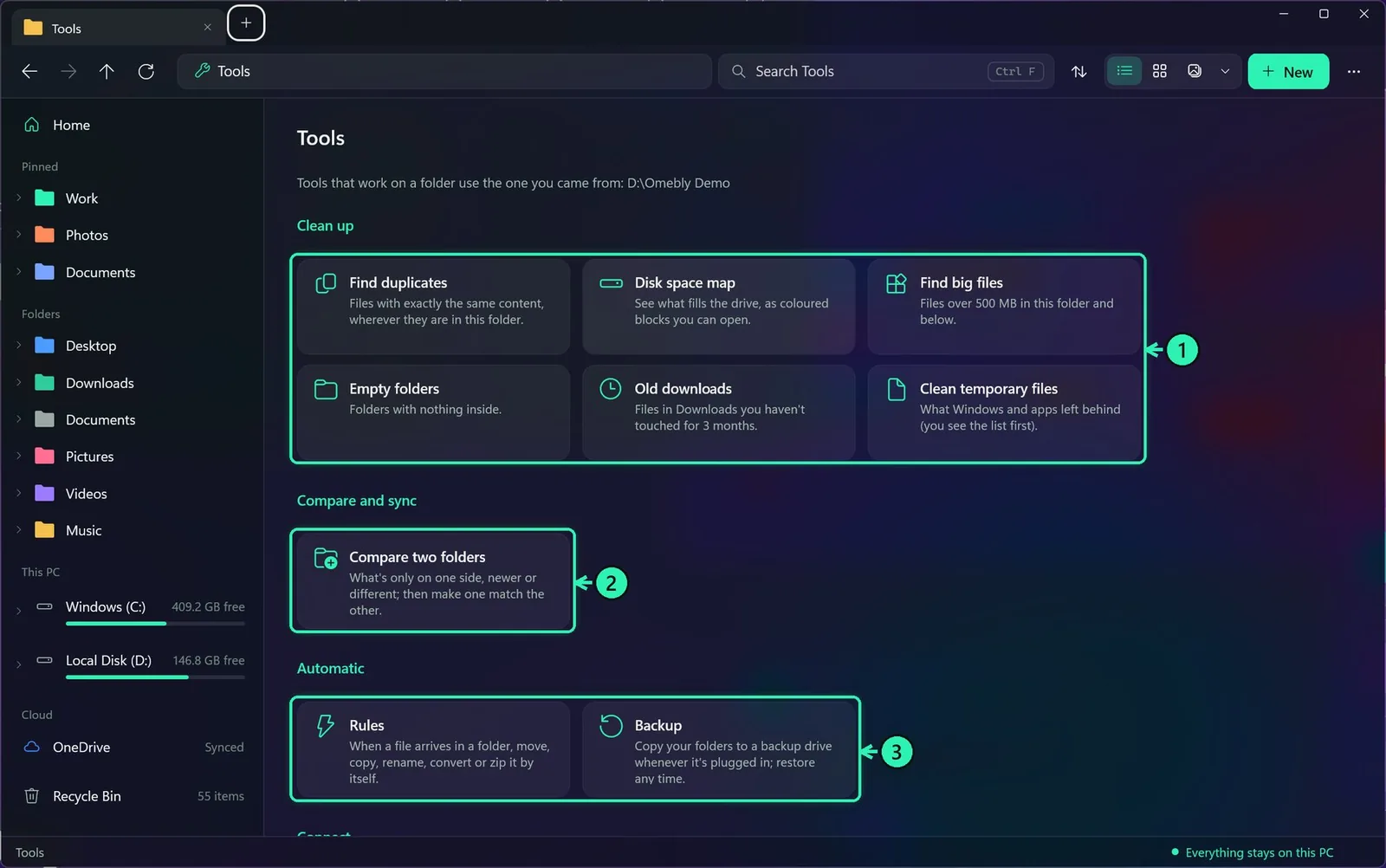
Open ⋯ > Tools, or press Ctrl+K and type "Tools".
Clean up: find big files (over 500 MB), empty folders, downloads you haven't touched for 3 months, and temporary files Windows and apps leave behind. You always see the list first.
Compare two folders: see what's only on one side, newer or different, then make one folder match the other.
Rules: when a file arrives in a folder, move, copy, rename, convert or zip it by itself. For example, move every PDF in Downloads to Documents.
Backup: copy your folders to a USB or backup drive every time it's plugged in. Older versions are kept, and you can restore any of them.
1Move the extra copies to the Recycle Bin
2The oldest copy is kept
3Same content, found by a fingerprint
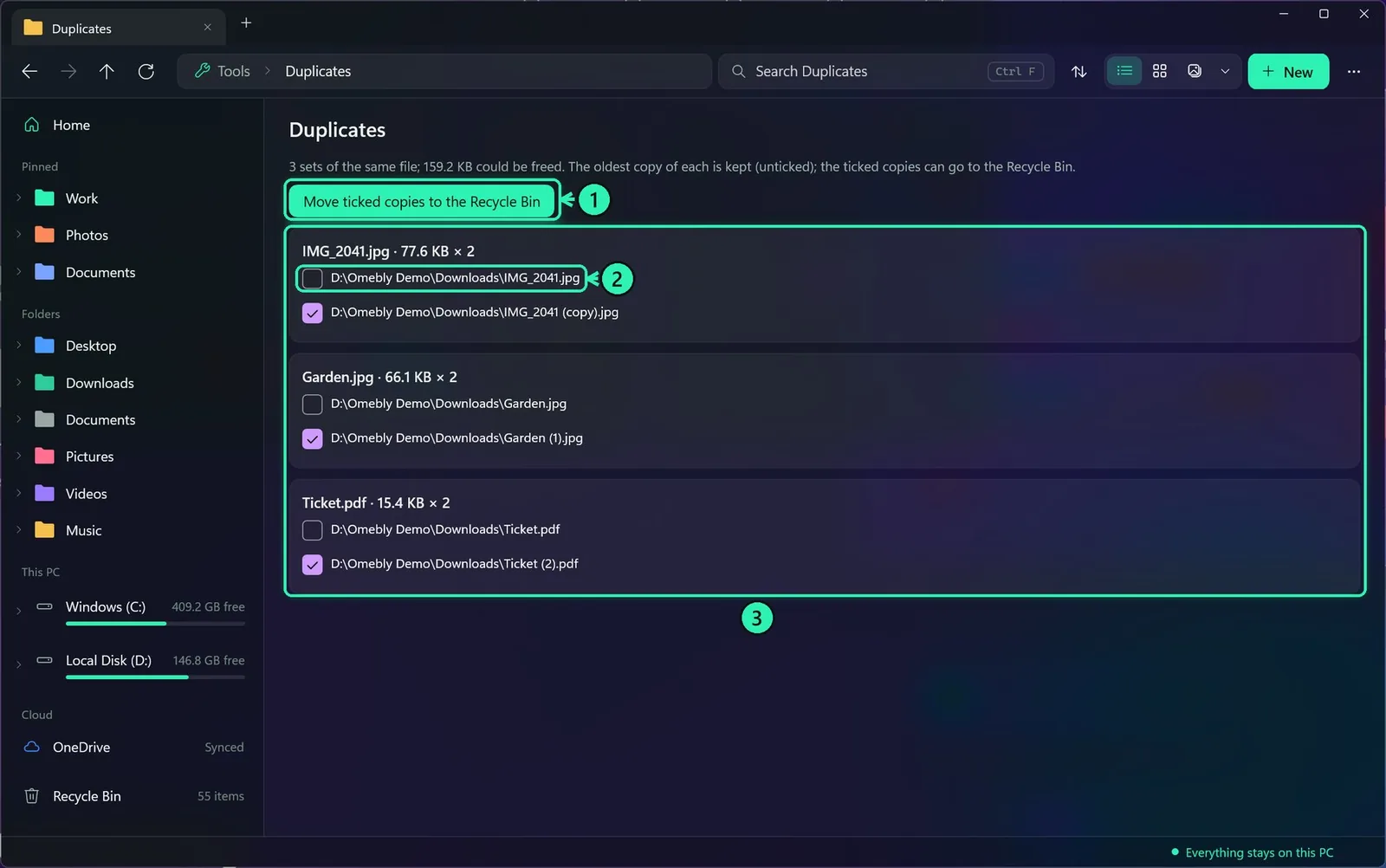
Find duplicates: right-click a folder, then More tools > Find duplicates in this folder. Files with exactly the same content are found whatever their names. The oldest copy is kept, and the others go to the Recycle Bin in one click.
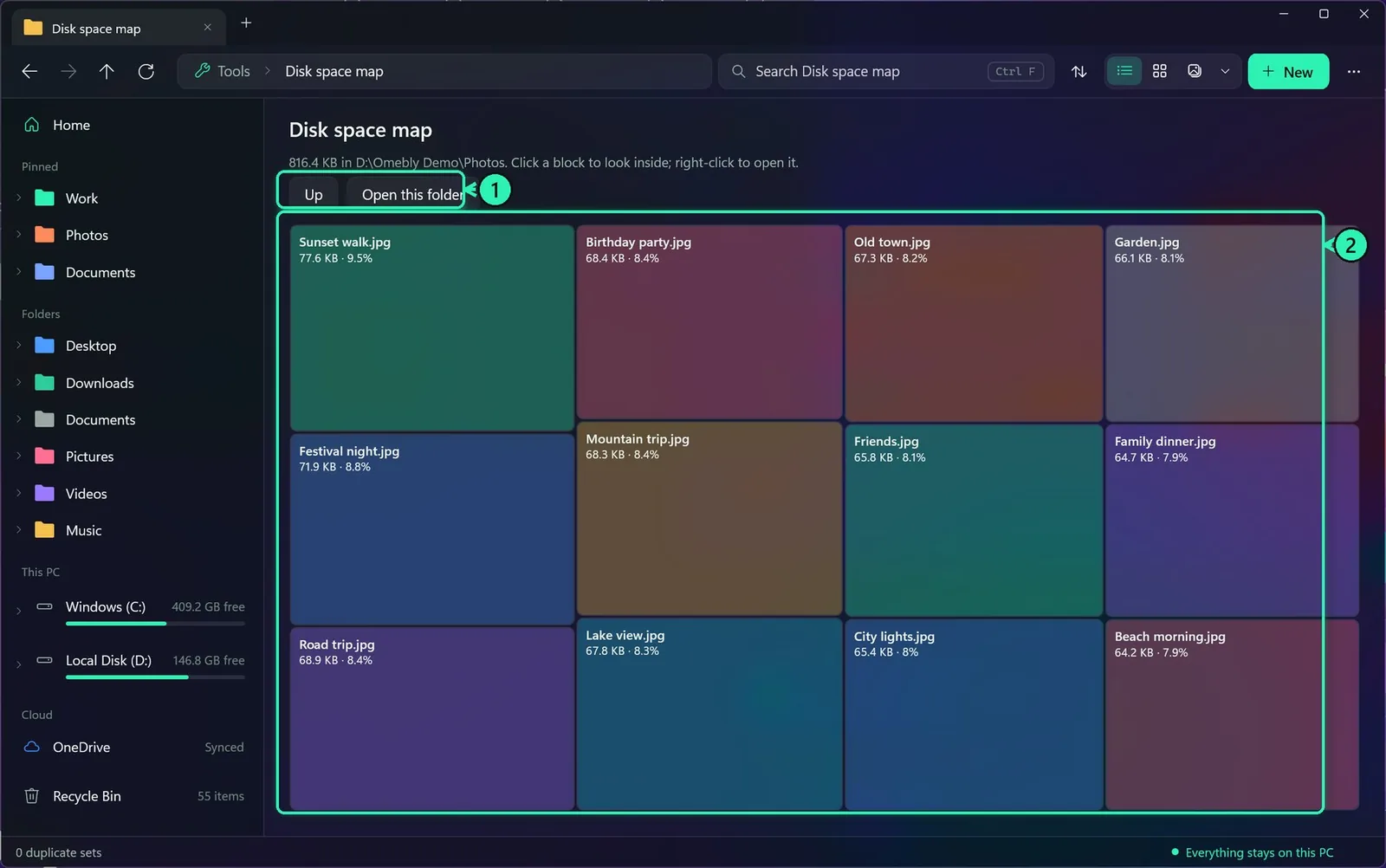
1Go up, or open the folder
2Bigger block = bigger file; click to look inside
Disk space map: see what fills a drive or folder. The bigger the block, the bigger the file or folder. Click a block to look inside it.
14More tools: lock, shred, permissions
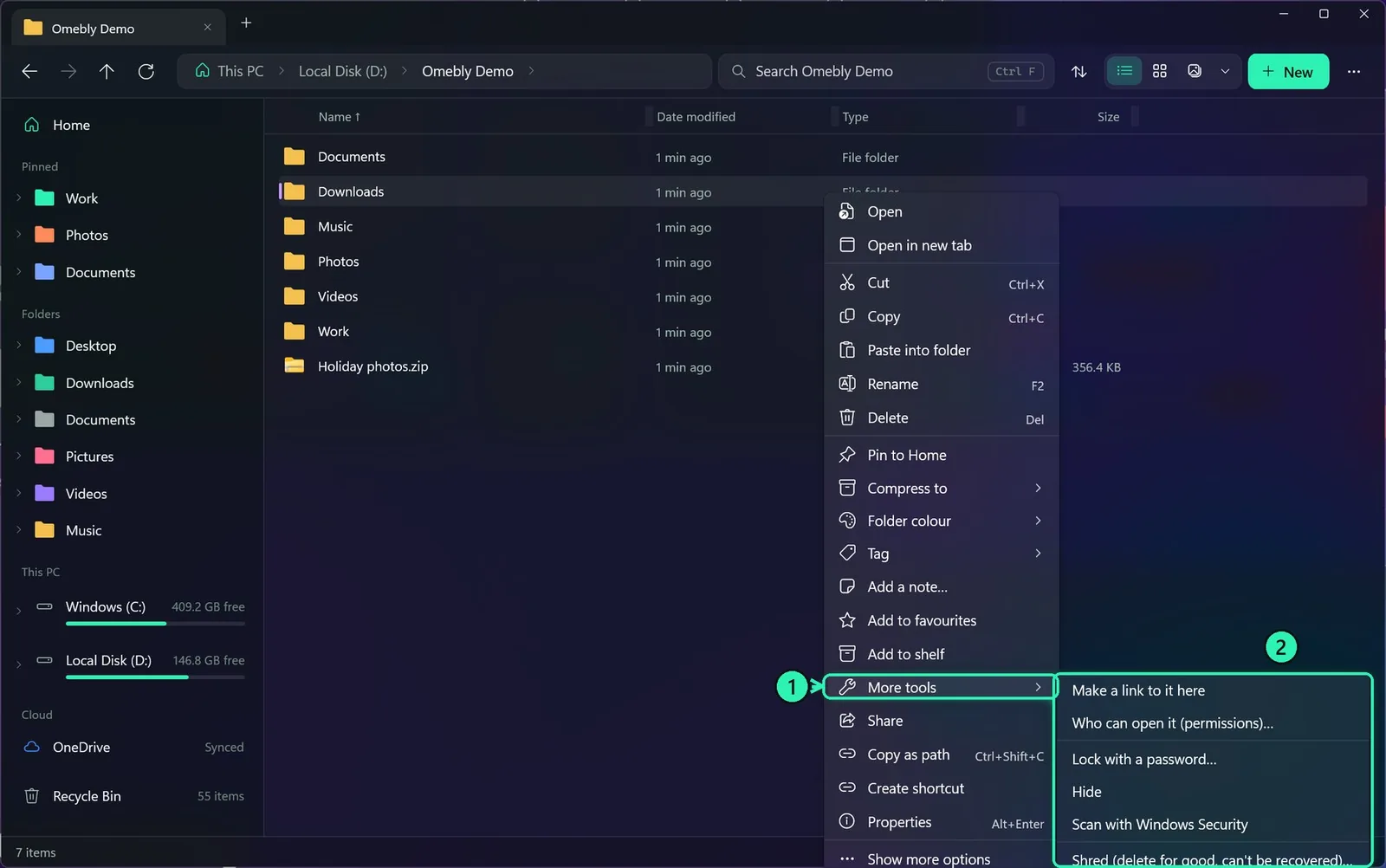
1Right-click, More tools
2Links, permissions, lock with a password, hide, scan, shred
Lock with a password: the file is encrypted with AES-256, and only the password opens it. Shred deletes a file so it can never be recovered, and it asks twice first.
Who can open it shows a file's permissions in plain words. What is using this file? tells you which app has it open when Windows won't let you delete it.
Checksums (MD5, SHA-1, SHA-256) check a download. Photo privacy removes the location and camera details from photos before you share them.
15Preview pane and split view
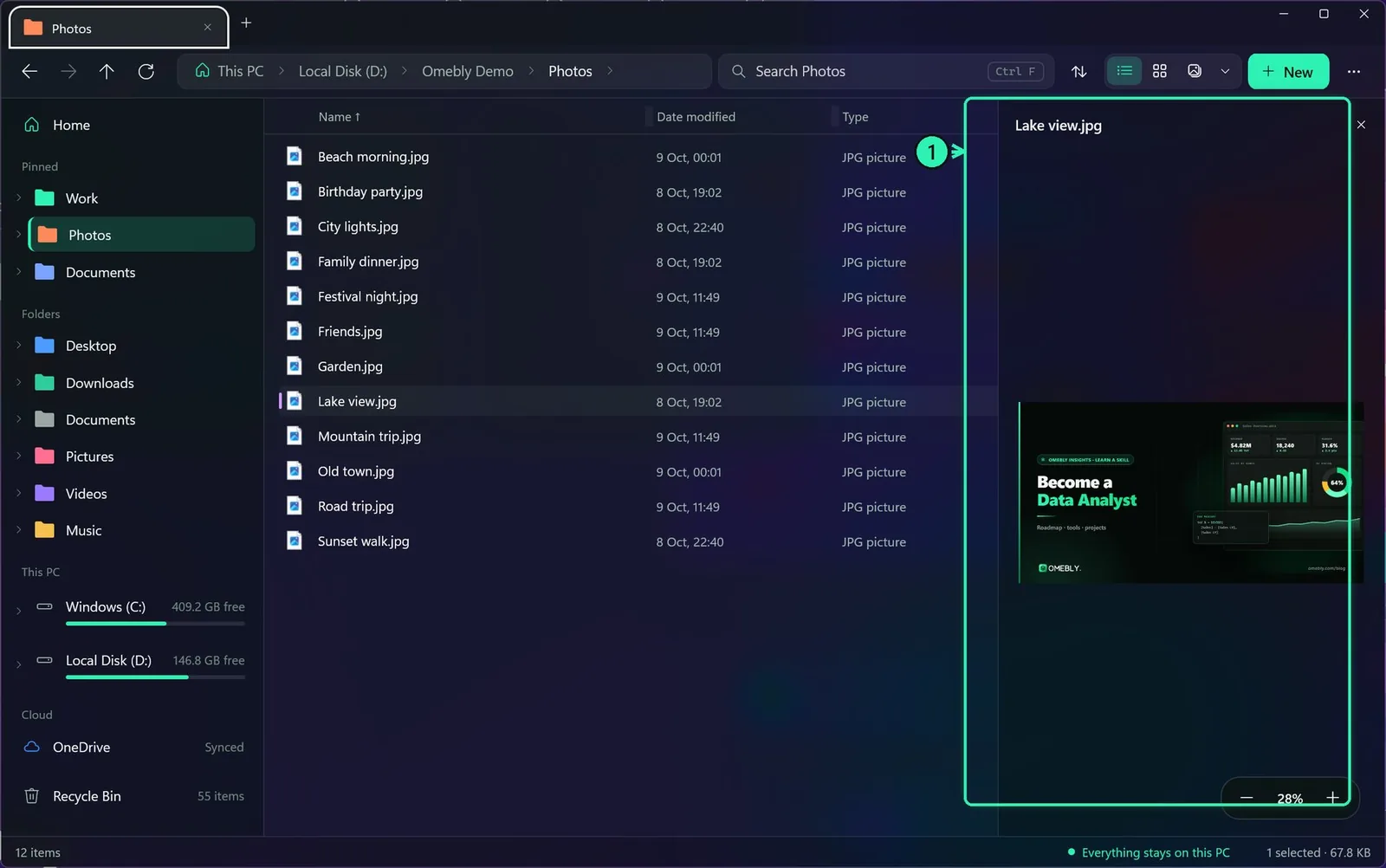
1Preview pane: see a file without opening it
Preview pane (Alt+P): see the selected file on the right without opening it. Alt+Shift+P shows the details pane, where you can edit a file's details too.
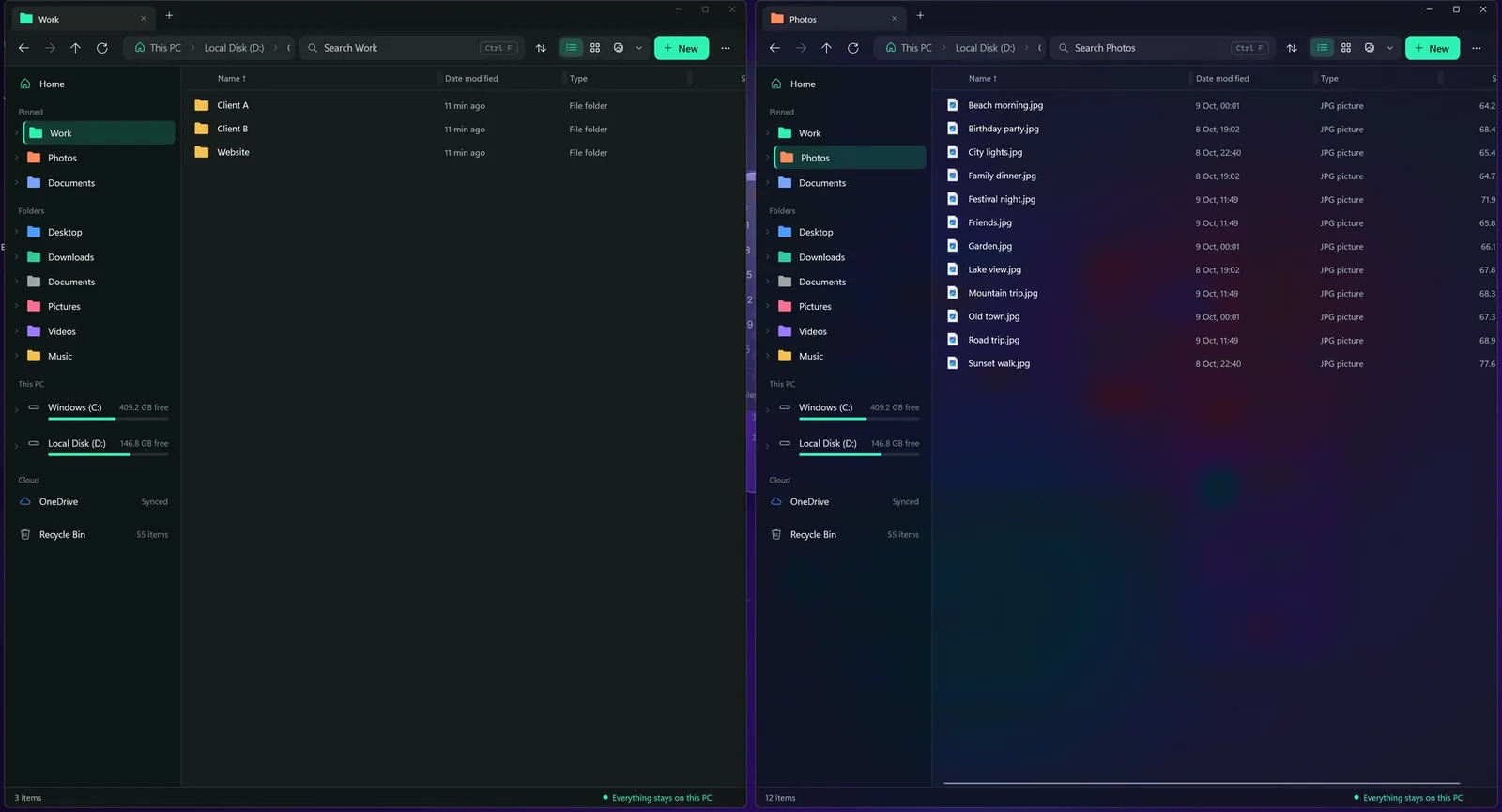
Split view: two folders side by side for dragging files between them. Press Ctrl+K and choose Split view.
16Cloud drives, phones and servers
OneDrive, Google Drive, Dropbox and iCloud show in the sidebar with each file's sync status. Right-click a file and choose Always keep on this device or Free up space.
Phones and cameras plugged in with USB show up under This PC. Map a network drive is on the This PC menu.
FTP, FTPS and SFTP servers: add a server once and it shows in the sidebar like a folder. Passwords stay in Windows Credential Manager.
17Make Omebly your default file manager
1Single or double click
2Hidden files, extensions, recent files
3Make Omebly open your folders and Win+E
Open ⋯ > Folder options and tick Open folders and Win+E in Omebly Explorer. From then on, folders you open from the desktop, from other apps and with Win+E open in Omebly. Only your account is changed, and if Omebly ever fails to start, it gives folders back to File Explorer by itself.
Jump-to bar: while Omebly Explorer is open, every app's Open and Save window (Photoshop, Chrome, Word, and so on) gets a small bar with your pinned folders, one click away.
18Themes
There are two looks: Omebly Glass (dark and see-through) and Windows Light. Change it in ⋯ > Theme or with Ctrl+K.
19Updates
When a new version is out, Omebly Explorer shows Update Omebly Explorer when it opens. Click Update now: it downloads the update, checks that it really comes from Omebly (it's signed), installs it and opens again by itself. Your settings, pins and tags stay.
20Keyboard shortcuts
Ctrl+TNew tab
Ctrl+WClose tab
Ctrl+Shift+TReopen the closed tab
Ctrl+TabNext tab
Ctrl+NNew window
Ctrl+Shift+NNew folder
Ctrl+LType a path
Ctrl+FSearch
Ctrl+KCommand bar
F5Refresh
Alt+← / BackspaceBack
Alt+→Forward
Alt+↑Up one folder
SpaceQuick look
F2Rename (several files: bulk rename)
Alt+EnterProperties
Ctrl+C / X / VCopy, cut, paste
Ctrl+Shift+CCopy as path
DelTo the Recycle Bin
Shift+DelDelete for good (asks)
Ctrl+ZUndo
Ctrl+YRedo
Ctrl+ASelect all
Ctrl+mouse wheelBigger or smaller icons
Ctrl+1 / 2 / 3Details, Tiles, Gallery
Alt+PPreview pane
Alt+Shift+PDetails pane
EscClose the viewer
In the viewer: ←→ previous and next, +− zoom, R rotate, 0 fit, F full screen, E edit text, and Ctrl+S save.
Your privacy
Omebly Explorer keeps everything on your PC. There is no account, no upload, no tracking and no ads. The PDF tools run inside the app, even offline. The only request to the internet is the check for a new version, and it carries nothing about you. Updates are signed, so a fake one can't install. The code is open source (MIT) on GitHub, so anyone can check this.
Check your download (SHA-256)
In PowerShell: Get-FileHash .\OmeblyExplorer-Setup-x64.exe. It should match:
Yes. It is free, with no ads, no account and no paid version. It is open source under the MIT licence, so anyone can read the code on GitHub.
Does it replace File Explorer?
Only if you want it to. Tick "Open folders and Win+E in Omebly Explorer" in Folder options, and untick it any time. File Explorer stays on your PC, untouched.
Do the PDF tools upload my files?
No. The 51 PDF tools are built into the app and run on your PC, even with no internet. You do not need Microsoft Word or any other app.
Does it send my data anywhere?
No. There is no account, no tracking and no upload. The only time it goes online is to check for a new version, and that check sends nothing about you.
How do updates work?
When a new version is out, a pop-up says "Update Omebly Explorer". Click Update now and it downloads, checks Omebly's signature so only real updates install, installs and opens again by itself.
Why might Windows show a message when I install it?
Windows SmartScreen can show "Windows protected your PC" for apps that are new and not yet downloaded by many people. Click More info, then Run anyway. It goes away as more people use the app.
Which Windows versions does it work on?
Windows 11, and Windows 10 version 1809 or newer. There is an installer for normal (x64) PCs and one for ARM PCs such as Snapdragon laptops.
How do I remove it?
Settings > Apps > Installed apps > Omebly Explorer > Uninstall. If you made it your default file manager, the uninstaller gives your folders back to File Explorer first.