How Do You Move Off WordPress Without Losing Your Google Rankings?
Rankings are rarely lost because a site leaves WordPress; they're lost because URLs, content and metadata go missing on the way. Here's the step-by-step plan to protect them.
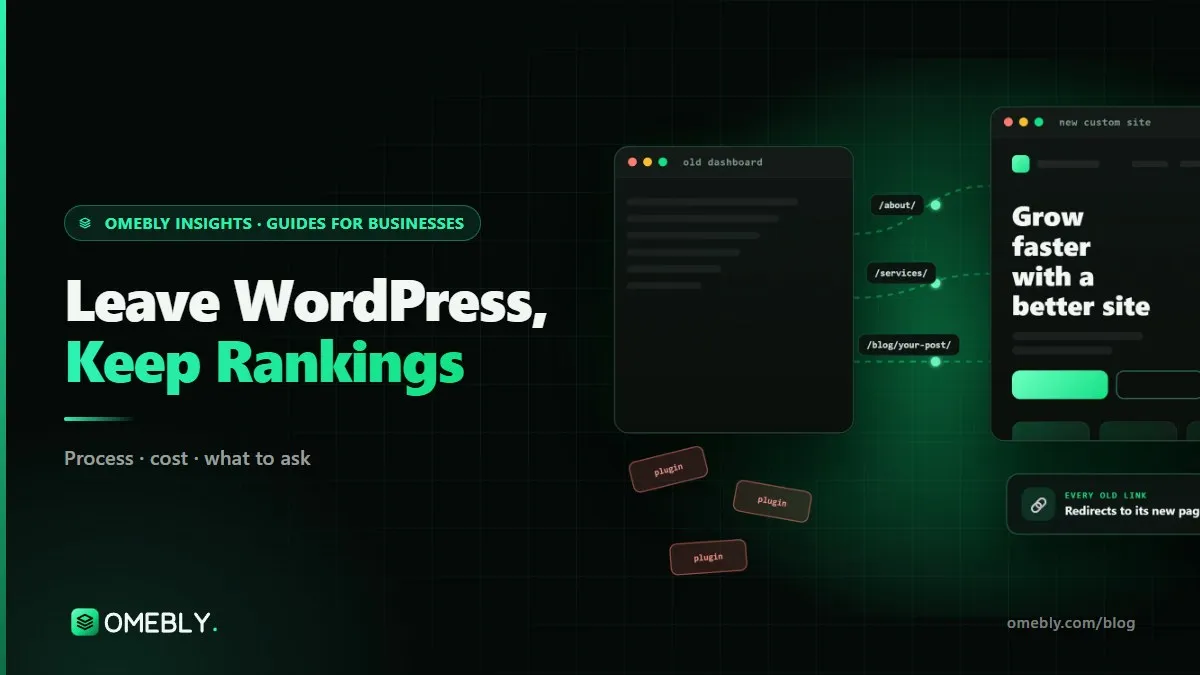
Moving away from WordPress, whether to a custom build, a headless setup or another platform, is often the right decision for speed and upkeep. The fear is always the same: will the leads that come from Google disappear? You can migrate WordPress without losing SEO if you treat search traffic as something to be moved deliberately, page by page, not something that will follow on its own.
Rankings are rarely lost because a site leaves WordPress. They’re lost because URLs change without redirects, content gets trimmed, titles go missing or tracking breaks so nobody notices for weeks. This guide is the step-by-step plan to avoid all four. If you’d like a team to run it, our WordPress to custom website migration service follows this process on every project.
Quick answer: Crawl the old site and record every URL, title, description and its traffic; keep the same URLs where possible and 301-redirect each changed one to its closest new page; carry over content, headings, internal links, canonical tags and structured data; test everything on a staging site; then launch, submit the new sitemap in Search Console and watch crawl errors and rankings closely for the following weeks.
Why migrations lose rankings
Google ranks pages, not websites. Each of your pages has built up signals over time: its address, its content, the links pointing to it and how people respond to it in search. A migration loses rankings when it breaks those signals:
| What goes wrong | What Google sees | Prevention |
|---|---|---|
| URLs change with no redirect | Pages vanish; links point to errors | Full URL map with 301s |
| Redirects all go to the homepage | Old pages treated as removed | Redirect to the closest matching page |
| Content trimmed in the redesign | Less relevant pages | Carry content over; improve, don’t cut |
| Titles and descriptions lost | Weaker search snippets | Export and map SEO plugin data |
| Internal links broken or removed | Pages harder to find and rank | Rebuild navigation and in-text links |
| Pages blocked from indexing | Pages drop out of search | Remove staging blocks at launch |
| Slower or broken mobile pages | Worse experience | Test on real phones before launch |
| Tracking missing | Problems go unnoticed | Analytics and Search Console from day one |
Step 1: Benchmark before you touch anything
Record where you stand so you can compare later:
- Export the last 12 months of performance from Google Search Console (queries, pages, clicks, impressions).
- Note your top pages by traffic and by enquiries or sales in Google Analytics.
- Record positions for your 20 to 50 most important search terms.
- Save the current XML sitemap.
Step 2: Crawl the old site and build a URL map
Use a crawler to list every URL the old site serves: pages, posts, categories, tags, author archives, media attachment pages and any old landing pages. Add URLs from Search Console and analytics that the crawler missed, and any that other sites link to.
Then, in a spreadsheet, give each old URL one decision:
- Keep: same address on the new site (the safest option)
- Merge: content combined into another page; redirect to it
- Redirect: address changes; 301 to the new equivalent
- Remove: only for pages with no traffic, no links and no value; return a proper 404 or 410
Nothing launches until every row has a decision and a destination.
Step 3: Keep URLs where you can
The easiest redirect is the one you don’t need. If your WordPress posts live at /blog/post-name/, keep that pattern on the new site. Keep trailing slashes consistent with the old site. Change URLs only where there’s a clear reason, such as removing dates from post addresses or fixing messy category paths.
Step 4: Set up 301 redirects properly
For every URL that changes, add a permanent server-side redirect to the closest matching page. Google’s guide to redirects and Google Search recommends permanent server-side redirects where possible. A few rules:
- One hop only. Old URL straight to final URL. Clean up chains left over from earlier redesigns.
- Closest match, not homepage. A redirected service page should land on the new version of that service.
- Cover the variations: with and without trailing slash, HTTP and HTTPS, www and non-www.
- Don’t forget media and PDFs that rank or are linked from other sites.
Step 5: Carry over on-page SEO, page by page
For each kept or redirected page, the new version should match or improve the old one on:
- Title tag and meta description (export these from Yoast, Rank Math or your SEO plugin)
- H1 and main headings
- Body content, including FAQs and important sections that might be “tidied away” in a redesign
- Image alt text
- Canonical tag pointing to itself (or to the right canonical page)
- Structured data, such as Organization, LocalBusiness, Article, Product, FAQ or Breadcrumb
- Open Graph tags for social sharing
Internal links
Navigation menus, footer links, breadcrumbs and links inside your content all tell Google which pages matter. Update in-text links to point at new URLs directly rather than relying on redirects.
Step 6: Test on staging, then check indexing settings
Build and test the new site on a staging address that is blocked from search engines. Before launch:
- Run the URL map against staging: every old URL should land on the right page in one hop.
- Crawl staging to find broken links, missing titles and duplicate pages.
- Test forms, checkout and tracking.
- Check pages on real phones for speed and layout.
Then, at launch, remove the staging block: the “noindex” tag or robots.txt rule that kept staging out of Google. Forgetting this is one of the most common, and most damaging, migration mistakes.
Step 7: Launch day
- Take a full backup of the old WordPress site.
- Point the domain at the new site.
- Test a sample of redirects on the live domain, then the full list with a crawler.
- Confirm analytics, Search Console verification and conversion tracking work.
- Submit the new XML sitemap in Search Console.
- Use the URL Inspection tool on your most important pages.
Step 8: Monitor for the next few weeks
- Search Console Pages report: watch for new “Not found (404)” and redirect errors; fix them quickly.
- Performance report: compare clicks and impressions for your top pages with your benchmark.
- Analytics: check that enquiries and sales are being recorded.
- Rankings: some movement is normal at first; a page that drops and stays down usually points to a missing redirect or lost content.
The headless option: leave WordPress without leaving it
If your team likes editing in WordPress and the problem is speed, plugins or design limits, there’s a lower-risk route: keep WordPress as the editor and replace only the public site with a fast custom front end. Your posts, pages, categories and media stay where they are, URLs can stay the same and editors don’t need retraining. Our guide to what a headless CMS is explains the idea, and if you’re comparing platforms beyond WordPress, our CMS development page covers Strapi and Sanity.
Mistakes to avoid
- Redirecting everything to the homepage
- Launching with the staging “noindex” still on
- Dropping content to make the design look cleaner
- Losing SEO plugin data (titles, descriptions, canonicals, schema)
- Changing domain, platform and design all at once without a reason
- Removing redirects a few months later
- No benchmark, so you can’t tell what changed
Checklist to migrate WordPress without losing SEO
- Search Console and analytics benchmarks saved
- Full crawl of old URLs, plus URLs from Search Console and backlinks
- Every URL marked keep, merge, redirect or remove
- Same URL patterns kept where possible
- One-hop 301s to the closest matching page
- Titles, descriptions, headings and content carried over
- Canonicals, structured data and alt text in place
- Internal links updated to new URLs
- Staging tested and crawled; forms and tracking working
- Staging block removed at launch
- New sitemap submitted; old site backed up
- Search Console checked regularly in the weeks after launch
How Omebly can help
Omebly moves businesses off slow, plugin-heavy WordPress sites to fast custom front ends, usually keeping WordPress as a headless editor so your team edits as before. It’s how omebly.com itself is built. Our WordPress to custom migration includes a content audit and URL map, every old link kept or redirected, SEO, schema, forms and tracking rebuilt in our own code, and launch-day checks with the new sitemap submitted in Search Console. It sits within our web development service, with a fixed written quote within 48 hours of a free consultation.
We won’t promise rankings; nobody honestly can. We will protect what you’ve already earned with a careful, documented process.
Thinking about leaving WordPress? Send us your site address and we’ll tell you what the move would involve.
Frequently asked questions
Will my rankings drop at all after a migration?
Some movement in the first few weeks is common while Google recrawls and re-evaluates the site, even when everything is done well. A careful migration aims to keep that short and small. Nobody can honestly promise zero change, but losing pages, content or redirects is what causes lasting drops.
How long should I keep redirects in place?
Treat them as permanent. Other sites, old emails, bookmarks and social posts keep linking to your old addresses for years. Removing redirects later turns those links into errors. Keep the redirect list as part of the site and carry it over to any future rebuild.
Should I change my domain at the same time?
Avoid it if you can. Changing platform, design and domain all at once makes it much harder to tell what caused any problem. If a domain change is needed, follow Google's site move guidance and use the Change of Address tool in Search Console.
Can I use the migration to delete weak pages?
Yes, it is a good moment to tidy up. Merge thin or duplicate pages into stronger ones and redirect the old URLs to the closest match. Before removing a page, check whether it gets search traffic or links from other sites; if it does, keep or merge it rather than delete it.
What happens to my Yoast or Rank Math settings?
The titles, meta descriptions, canonical tags and schema those plugins hold need to be exported or recreated on the new site. In a headless setup where WordPress stays as the editor, the data can often be read from WordPress directly; in a full move, it should be part of the content migration.
Do I need to resubmit my site to Google?
You don't need to resubmit the whole site, but you should submit the new XML sitemap in Search Console on launch day, and keep the old sitemap available for a while so Google finds and follows the redirects. Then monitor the Pages and Performance reports.

Written by
Nazmul Hussain, Managing Director & Technical Head, Omebly. 10+ years building websites and apps for clients in India, the Gulf, the UK and the US, and mentoring at Omebly Academy. LinkedIn · GitHub
Follow Omebly
New guides, work and launches on every channel.