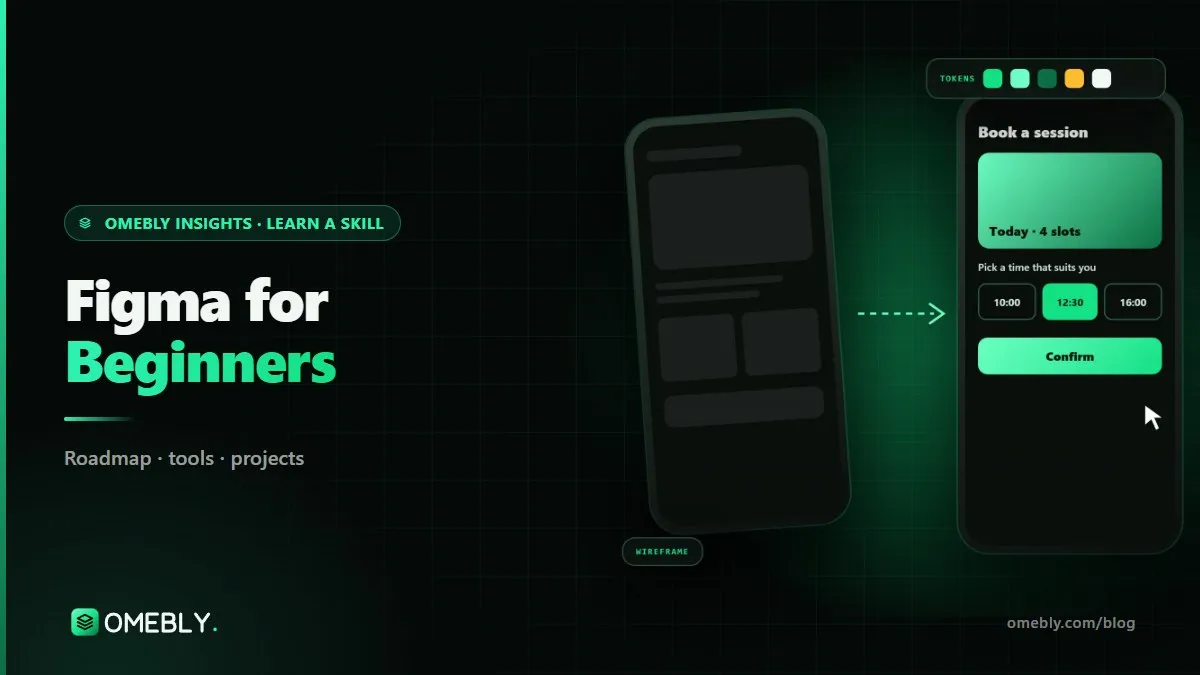
Figma Tutorial for Beginners: Design Your First App Screen
Open Figma for the first time and finish with a real, clickable app screen. This step-by-step tutorial covers frames, grids, styles, auto layout, components and a simple prototype.
Figma looks simple when you open it: a blank grey canvas and a toolbar. Then you try to design a real app screen and the buttons drift out of line, the text overflows and nothing lines up. This Figma tutorial for beginners walks you through one complete screen, step by step, using the same habits professional designers use, so your first file is tidy from the start.
We will design the home screen of a simple habit tracker app. It is small enough to finish in an evening, but it uses every core skill: frames, grids, styles, auto layout, components and a prototype. If you want a structured path after this, the Omebly UI/UX Design course teaches Figma alongside research, testing and design systems.
Quick answer: To design your first app screen in Figma, create a phone-sized frame, add a layout grid, set up text and colour styles, build each section with auto layout, turn repeated parts like cards and buttons into components, then link screens in Prototype mode and test them on your phone. Expect to finish a clean first screen in two to four hours.
Before you start: setting up Figma
You need a free Figma account and either the browser or the desktop app. Figma’s pricing page lists a free plan for individuals with a limit on projects, which is plenty for learning.
- Sign in and create a new design file. Name it “Habit tracker – v1”. Naming files properly is a habit worth building now.
- In the left panel, rename “Page 1” to “Screens” and add a second page called “Components”. Separating the parts from the screens keeps big files manageable.
- Learn five shortcuts first: F (frame), R (rectangle), T (text), Shift + A (auto layout) and Ctrl/Cmd + D (duplicate). Everything else can wait.
What we are designing
Our habit tracker home screen has four parts:
- a header with a greeting and today’s date
- a progress card showing how many habits are done today
- a list of habit cards, each with an icon, name and a tick button
- a bottom navigation bar with three tabs
Sketch this on paper for two minutes before you touch Figma. A rough sketch settles the structure, so the tool doesn’t make design decisions for you.
Step 1: Create the frame and layout grid
Press F and choose a phone preset from the right panel, such as Android Compact or an iPhone size. A frame is Figma’s version of an artboard: it is the screen.
Now add a layout grid. Select the frame, click + next to Layout grid and set:
| Setting | Value | Why |
|---|---|---|
| Type | Columns | Most app screens align to columns |
| Count | 4 | Standard for phone layouts |
| Margin | 16 | Keeps content off the screen edges |
| Gutter | 16 | Even space between columns |
Use multiples of 8 for spacing everywhere (8, 16, 24, 32). This “8-point system” is not a law, but it makes layouts feel consistent and it matches how developers think about spacing.
Step 2: Set up colour and text styles
Beginners pick colours and font sizes as they go, and end up with nine slightly different greys. Decide them once.
Colours
Create a small palette and save each as a colour style or variable:
- Primary: one strong colour for buttons and progress (for example a deep green)
- Background: an off-white
- Surface: white, for cards
- Text primary and text secondary: a near-black and a mid-grey
- Success: for completed habits
Check that body text meets at least a 4.5:1 contrast ratio against its background, as the W3C’s WCAG contrast guidance recommends. Light grey text on white is the most common beginner mistake.
Text styles
Pick one font family (Inter or Roboto are safe choices) and create four styles:
- Heading: 24, bold
- Title: 18, semibold
- Body: 16, regular
- Caption: 13, regular
Four is enough for one screen. Every piece of text you add should use one of these styles.
Step 3: Build each section with auto layout
Auto layout is the single most important Figma skill. It makes a frame stack its children in a row or column with fixed padding and gaps, and it resizes when content changes, just like real app code.
The header
- Type “Good morning, Riya” (Heading) and “Thursday, 15 October” (Caption).
- Select both and press Shift + A. Figma wraps them in an auto layout frame.
- Set direction to vertical and the gap to 4.
The progress card
- Add the text “3 of 5 habits done” (Title) and a progress bar: a full-width grey rectangle with a shorter primary-coloured rectangle on top.
- Wrap them in auto layout, vertical, gap 12, padding 16 on all sides.
- Give the frame the Surface fill, a corner radius of 16 and a soft shadow.
- Set its width to Fill container so it stretches to the margins.
One habit card
- Add a 40×40 circle for the icon, the text “Drink 2 litres of water” (Body) and a 24×24 tick button.
- Select all three, Shift + A, direction horizontal, gap 12, padding 16.
- Set the text layer to Fill container so it takes the spare space and pushes the tick to the right.
- Set alignment to centre so everything lines up vertically.
Now type a much longer habit name. The card grows taller instead of overlapping. That is auto layout doing its job.
Step 4: Turn repeated parts into components
You will have five habit cards. If you copy and paste them, changing the corner radius later means editing five layers. Components solve that.
- Select the habit card and press Ctrl/Cmd + Alt + K to create a component. Move it to your “Components” page.
- Drag instances of it into the screen. Change the text and icon on each instance; the structure stays linked to the main component.
- Change the main component’s padding to 20 and watch every instance update.
Add a variant for “done”
A habit is either done or not done. Select the component and add a variant. In the new variant, fill the tick button with the Success colour and set the habit name to the secondary text colour. Name the property “State” with values “Default” and “Done”. Now each card on the screen can switch state from the right panel.
Do the same for the bottom navigation tabs: one component with “Active” and “Inactive” variants.
Step 5: Assemble the screen
Select the header, progress card and the list of habit cards, and wrap them in one vertical auto layout with a gap of 24 and side padding of 16. Place the bottom navigation bar at the bottom of the frame and, in the constraints panel, pin it to the bottom so it stays put on taller phones.
Check two practical details:
- Touch targets: buttons should be easy to tap. Google’s Material Design guidance recommends targets of at least 48×48 dp, so give the 24×24 tick a larger invisible tap area with padding.
- Real content: replace “Habit name” with real, varied habits. Short and long names reveal layout problems that placeholder text hides.
Step 6: Prototype and test on your phone
Duplicate your screen and make a second one, such as a “Habit details” screen with a title, a calendar row and a notes field. Then:
- Switch to the Prototype tab in the right panel.
- Select a habit card, drag the blue connector to the details screen and set On tap → Navigate to, with Smart animate.
- On the details screen, link a back arrow to the home screen.
- Click Present (the play button) to try it.
Open the Figma mobile app or the shared link on your phone and use the prototype with one hand. Text that looked fine on a laptop often feels tiny on a real screen.
Test with two or three people
Ask a friend to “mark today’s water habit as done, then open its details”. Don’t help. Note where they hesitate. Two quick tests will teach you more than an hour of polishing.
Common beginner mistakes in Figma
- Groups instead of frames. Groups have no padding or auto layout. Use frames (or auto layout) for anything that behaves like a box.
- Absolute positioning everywhere. Dragging every layer by hand breaks as soon as text changes.
- Detaching instances. Detaching a component instance to “fix one thing” cuts the link to the main component. Add a variant or property instead.
- Messy layer names. “Frame 238” helps nobody. Name layers as a developer would: “Habit card”, “Progress bar”.
- Too many fonts and colours. Stick to your styles.
- Skipping the phone test. Always view your design at real size.
Your first-screen checklist
- Phone-sized frame with a 4-column grid and 16px margins
- Spacing in multiples of 8
- Colour styles and four text styles, all used consistently
- Body text contrast of at least 4.5:1
- Every section built with auto layout
- Habit card and navigation tab as components with variants
- Tap targets large enough for a thumb
- Two screens linked in a prototype and tested on a phone
- Layers and pages named clearly
What to learn after your first screen
Once this feels comfortable, design the remaining screens of the app (add habit, stats, settings) and you will start to see why a small design system matters. Then learn the thinking behind the screens: user research, flows and usability testing. Our roadmap on how to become a UI/UX designer lays out that order month by month, and the UX audit checklist shows how businesses judge the screens designers hand them.
How Omebly can help
If you would rather learn with a mentor checking your files each week, the Omebly UI/UX Design course is live and online, with recordings for revision. Month one covers design thinking, research, personas, flows and wireframes; month two covers typography, colour, layout grids and components in Figma; month three covers prototyping, usability testing, design systems and developer handoff. Tracks run for 3, 6 or 12 months (Core $699, Professional $1,199, Career $1,999), and tools include Figma, FigJam, Maze, Notion, Miro, Illustrator basics and Lottie. No drawing skill is needed, and the Professional and Career tracks add mock interviews and portfolio reviews, with placement assistance on the Career track, not a job promise.
Want to check your level first? Book a free call through the contact page or on WhatsApp.
Frequently asked questions
Is Figma free for beginners?
Yes. Figma has a free plan for individuals that is enough to learn on and design your first screens. It limits how many projects you can create, so keep practice files in one project and upgrade only when you work in a team.
How long does it take to learn Figma?
Most beginners can design a tidy single screen within a weekend. Getting comfortable with auto layout, components and variants usually takes two to four weeks of regular practice. Learning to make good design decisions takes longer than learning the tool.
Do I need a powerful computer for Figma?
No. Figma runs in a modern browser or a desktop app, and a normal laptop is enough for app screens. Very large files with many images can slow down older machines, so keep practice files small.
What is auto layout in Figma?
Auto layout makes a frame arrange its contents in a row or column with fixed spacing and padding. When text gets longer or you add an item, the frame resizes itself, which is how real buttons, cards and lists behave in an app.
Should I learn Figma or UX first?
Learn the basics of both together. A first screen teaches you the tool, but you also need to know who the screen is for and what task they are doing. The Omebly UI/UX course teaches research and wireframes in month one and visual design in Figma in month two.

Written by
Nazmul Hussain, Managing Director & Technical Head, Omebly. 10+ years building websites and apps for clients in India, the Gulf, the UK and the US, and mentoring at Omebly Academy. LinkedIn · GitHub
Follow Omebly
New guides, work and launches on every channel.