What Goes Into a Design System: Tokens, Components and Docs Explained
A design system is more than a Figma file of buttons. Here is what goes into one, from tokens to components to docs, and how the layers work together.
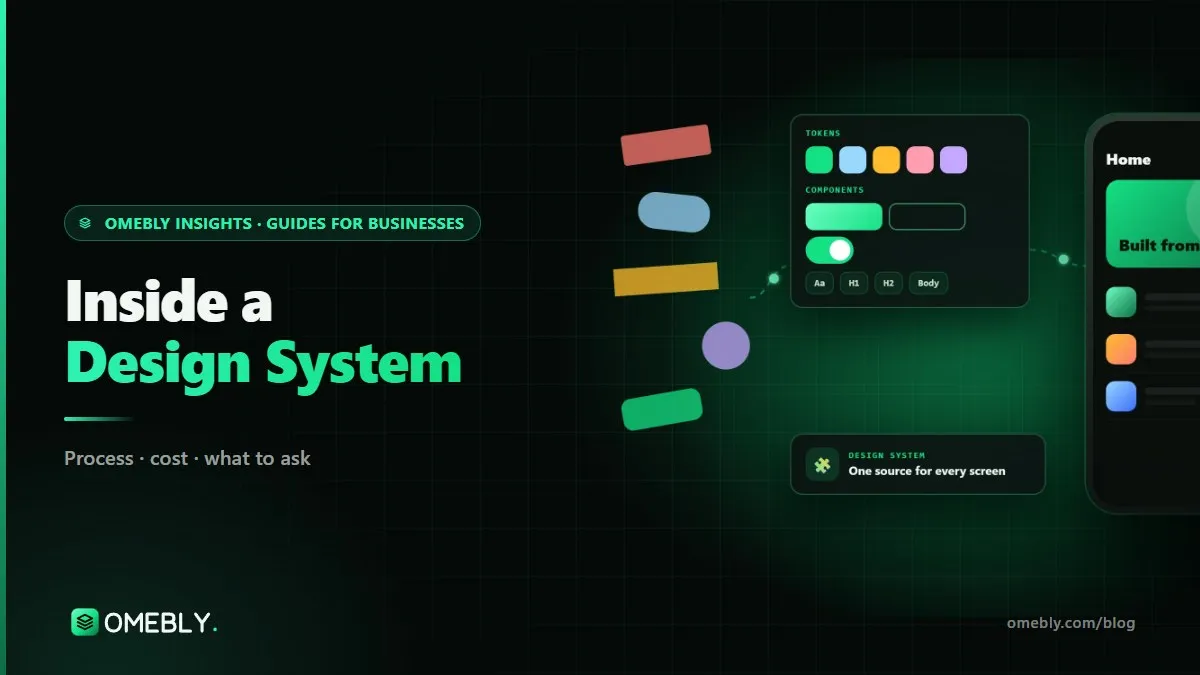
“We need a design system” is said in a lot of product meetings, and it often means different things to different people. To a designer it might be a Figma library. To a developer it might be a set of coded components. To a founder it might simply mean “make everything look consistent”. So what is in a design system, exactly, and which parts do you actually need?
This guide breaks a design system into its layers, explains what each one contains with plain examples, and shows how they connect design to code. It is based on the way we structure design system services for SaaS products, apps and multi-brand businesses.
Quick answer: A design system has five layers. Foundations (colour, type, spacing, radius, elevation) are stored as design tokens. Components (buttons, inputs, cards, tables) are built from those tokens, each with variants and states. Patterns combine components for common tasks such as forms or empty screens. Documentation explains when and how to use everything. Governance sets who can change the system and how.
What is in a design system: the five layers
It helps to think of a design system as a stack. Each layer is built from the one below it.
| Layer | What it contains | Example |
|---|---|---|
| Foundations and tokens | Named values for colour, type, spacing, radius, shadows and motion | color-text-primary, space-4, radius-md |
| Components | Reusable interface parts with variants and states | Button: primary, secondary, ghost; default, hover, focus, disabled, loading |
| Patterns | Combinations of components for common tasks | A sign-up form, a filter bar, an empty state |
| Documentation | Rules, examples and do’s and don’ts | “Use one primary button per screen” |
| Governance | Ownership, contribution and versioning | How a new component is proposed and approved |
A small product might only need the first two layers at first. A large product with several teams needs all five, or the system drifts.
Layer 1: Foundations and design tokens
Foundations are the basic visual decisions: your colour palette, type scale, spacing steps, corner radii, shadows, breakpoints and motion timings. A design token is one of those decisions with a name.
Base tokens
Base (or primitive) tokens hold raw values: blue-600 = #2457D6, space-4 = 16px, font-size-300 = 18px. They describe what a value is, not where it is used.
Semantic tokens
Semantic tokens describe purpose and point to a base token: color-action-primary → blue-600, color-text-error → red-700, space-card-padding → space-4. Components only use semantic tokens.
This two-layer setup is what makes themes possible. For dark mode, color-surface-default points to a dark grey instead of white; every component using it updates without being redrawn. The same trick supports several brands from one component set.
Tokens in design and in code
In Figma, tokens are usually stored as variables, with modes for light and dark themes. In code, the same names become CSS variables, a Flutter theme or platform resources. The W3C Design Tokens Community Group maintains a shared JSON format so tokens can move between tools, and converters such as Style Dictionary turn one token file into code for web, iOS, Android and Flutter.
Layer 2: Components with variants and states
Components are the parts designers drag into screens and developers reuse in code: buttons, text fields, selects, checkboxes, radio buttons, toggles, cards, tabs, dialogs, toasts, menus, tables and navigation bars.
A useful component is more than one drawing. Each one has:
- Variants: primary, secondary, ghost or destructive buttons; small, medium and large sizes; with or without an icon.
- States: default, hover, focus, pressed, disabled, loading and, for inputs, error and success.
- Properties: settings such as label text, icon, helper text or whether a field is required.
- Responsive behaviour: how it grows with longer content or narrower screens, usually built with auto layout in Figma.
A common test of a component library is to try a real, awkward case: a button label in German or Bengali, a user with a forty-character name, a table cell with no value. Components that survive those cases save developers from inventing fixes.
Layer 3: Patterns
Patterns show how components work together to solve recurring problems. Typical patterns include:
- Forms: label placement, required fields, inline validation and error summaries
- Empty states: what a list shows before any data exists, and what action it suggests
- Loading: skeleton screens versus spinners, and when to use each
- Filtering and search: a filter bar, chips for active filters, clear-all behaviour
- Confirmation: when to ask “Are you sure?” and when to offer undo instead
- Data display: chart styles and table rules, which matter a great deal in SaaS dashboard design
Patterns are where a system starts to shape the user experience, not just the look. They stop each team solving the same problem differently. Our guide on choosing dashboard charts is a good example of the kind of rules that belong here.
Layer 4: Documentation
A component without rules gets misused. Documentation answers the questions people would otherwise ask in chat:
- When to use it, and when to use something else instead
- Anatomy: the named parts of the component
- Do’s and don’ts, with correct and incorrect examples side by side
- Content rules: button label style, error message tone, date and number formats
- Accessibility notes: minimum touch targets, focus order, contrast and screen reader labels
- Code reference: the component’s name and properties in your codebase
Keep documentation short and close to the work. Notes beside components in Figma and coded examples in a tool such as Storybook are read far more often than a long PDF.
Layer 5: Governance
The final layer is the one most often skipped, and it is why many systems decay within a year. Governance answers:
- Who owns the system? Usually a design lead or senior developer, with time set aside for it.
- How are changes proposed? A simple request: the problem, the screens affected and a draft solution.
- How are changes reviewed? Checked for overlap with existing components, accessibility and code impact.
- How are changes released? Version numbers and a short changelog, so teams know what changed and when.
Without these rules, people add one-off variants “just this once”, and the library slowly turns back into the inconsistent product it was meant to fix.
How the layers connect: one change, traced through
Imagine your brand team decides the primary blue should be slightly darker to improve contrast. Without a design system, someone hunts through hundreds of screens and stylesheets, and a few places are always missed.
With a system, the change happens once. The base token blue-600 is updated. The semantic token color-action-primary already points to it, so every primary button, link and selected tab picks up the new colour in Figma. Developers pull the updated token file, and the same change reaches the website, the Android app and the iOS app in their next release. The documentation notes the change in the changelog, and governance records who approved it and why.
That is the real value of the layers: decisions are made once and travel everywhere, instead of being repeated, and slightly mis-copied, on every screen.
What a design system is not
- A style guide PDF. That lists colours and fonts; a system turns them into working, connected parts.
- A UI kit you bought. A kit can be a starting point, but it does not know your brand, your codebase or your rules.
- A one-off project. It needs owners and updates, like any product.
- A redesign. You can build a system from your current product, merging near-duplicates without changing what customers see.
Common mistakes when building a design system
- Building dozens of components before any real screen needs them
- Using base tokens directly in components, which makes theming painful later
- Naming tokens after colours (“blue-button”) instead of purpose (“action-primary”)
- Designing in Figma without agreeing names with developers
- Skipping states such as focus, disabled and error
- Writing documentation nobody can find
Design system checklist
- UI audit of existing screens, with duplicates marked
- Base and semantic colour, type and spacing tokens
- Light and dark modes driven by the same tokens
- Core components with variants, states and properties
- Key patterns: forms, empty states, loading, filters
- Usage notes, do’s and don’ts and accessibility rules
- Token names agreed with developers
- An owner, a contribution process and a changelog
How Omebly can help
We build design systems from what you already have. That means an audit of your current screens, tokens structured for light and dark themes, components with every variant and state, documentation written for your team, and token files your developers can wire into code. If your product is still taking shape, we often start with foundations while designing mobile app screens or dashboards, then grow the system as the product grows. Projects are led by founder Nazmul Hussain, who has 10+ years of experience building websites, apps and digital products.
See our wider UI/UX design services, or read what our design system services include, from audit to hand-off.
Ready to bring order to your interface? Contact us or message us on WhatsApp at +91 70444 33991 for a free consultation and a fixed written quote.
Frequently asked questions
What are the main parts of a design system?
Most design systems have five layers: foundations such as colour, type and spacing, stored as design tokens; components such as buttons and inputs, with variants and states; patterns that combine components for common tasks; documentation that explains how to use everything; and governance, the process for changing the system.
Is a design system only for designers?
No. It is shared by designers, developers, product managers and often content writers. Developers use the same tokens and components in code, so a design system is as much an engineering asset as a design one.
What is the difference between base tokens and semantic tokens?
Base tokens hold raw values, such as a specific shade of blue or a 16-pixel spacing step. Semantic tokens describe a purpose, such as the background of a primary button or the colour of an error message, and point to a base token. Components use semantic tokens, so themes can change without redrawing components.
Should a design system include content and writing rules?
It helps. Short rules on button labels, error messages, date formats and tone keep the product consistent in words as well as visuals. They can be a single page to start with.
How many components does a design system need at the start?
Start with the components your screens use most, often buttons, inputs, selects, checkboxes, cards, dialogs, navigation and tables. Add others when real screens need them, rather than building a large library nobody uses yet.
Where should design system documentation live?
Where people already work. Many teams keep usage notes beside the components in Figma and keep coded components documented in a tool such as Storybook. A single page linking both helps newcomers find everything.

Written by
Nazmul Hussain, Managing Director & Technical Head, Omebly. 10+ years building websites and apps for clients in India, the Gulf, the UK and the US, and mentoring at Omebly Academy. LinkedIn · GitHub
Follow Omebly
New guides, work and launches on every channel.