GA4 Key Events Setup: How to Track the Actions That Matter on a Business Website
Key events tell GA4 and Google Ads what success looks like for your business. Here is how to choose them, build them properly and check they are counting correctly.
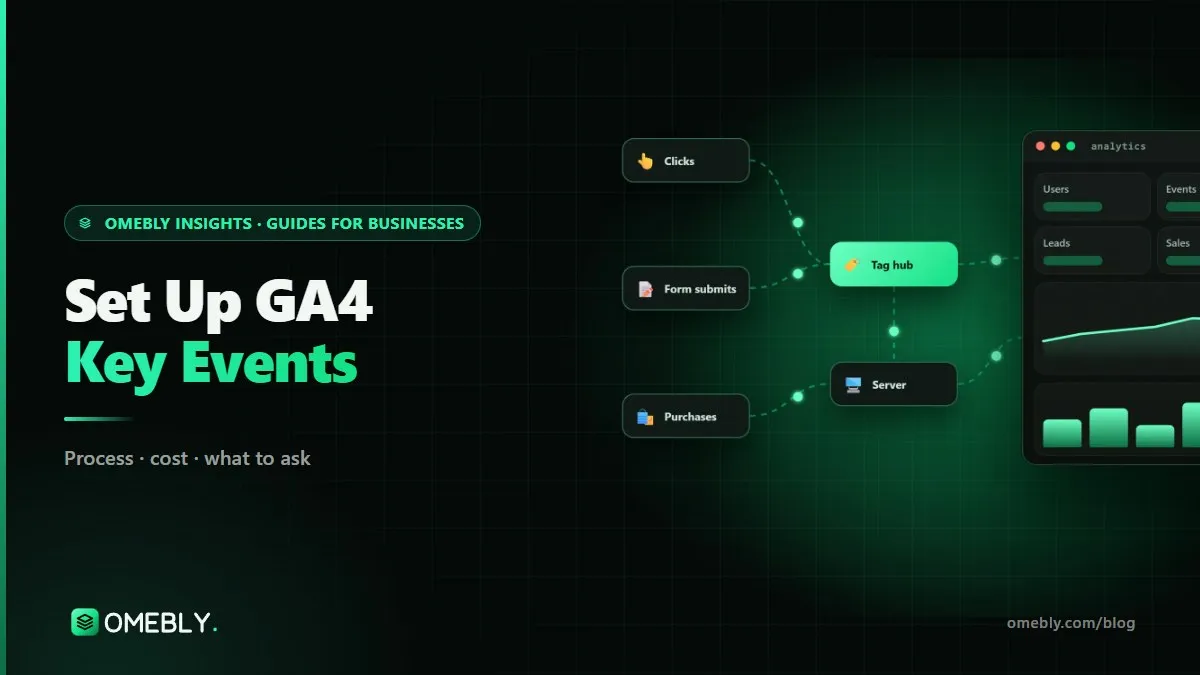
Google Analytics 4 tracks plenty out of the box: page views, scrolls, outbound clicks and more. What it cannot know is which of those actions actually matter to your business. That is the job of key events. A careful GA4 key events setup tells GA4, and through it Google Ads, what success looks like: a quote request, a booking, a call, a purchase.
Get it wrong and every report is quietly misleading. Mark too many events, or the wrong ones, and channels look better than they are; miss the real ones, and you cannot tell which campaigns bring customers. This guide walks through doing it properly, step by step, the same way we approach it in our GA4 setup service.
Quick answer: List the few actions that represent real business outcomes, such as completed enquiry forms, bookings, calls and purchases. Track each as a reliable event that fires only when the action succeeds, using clear names such as generate_lead or purchase. Mark only those events as key events in GA4, choose the counting method, test them in DebugView, then import them into Google Ads. Review them whenever the website changes.
What key events are, and why they matter
In GA4, an event is any interaction GA4 records. A key event is an event you mark as important to your business. Google’s help page About key events describes it as an event that measures an action that is particularly important to the success of your business.
Key events used to be called conversions in GA4. Google Ads still calls the actions it optimises towards conversions, and you can import GA4 key events into Google Ads to become those conversion actions. That link is why key events matter so much: if they are wrong, automated bidding learns from the wrong signals and spends your budget finding more of the wrong people.
Step 1: Write a short measurement plan
Before touching GA4, list what you want to measure. Keep it short:
| Business action | Event name | Key event? | Notes |
|---|---|---|---|
| Enquiry form submitted successfully | generate_lead | Yes | Fire on success, not on button click |
| Booking confirmed | generate_lead or a custom event | Yes | Include a booking type parameter |
| Phone number clicked | click_call (custom) | Usually yes | Intent, not a confirmed call |
| WhatsApp button clicked | click_whatsapp (custom) | Depends | Intent, not a confirmed message |
| Purchase completed | purchase | Yes | Include value, currency, transaction_id |
| Newsletter sign-up | sign_up or a custom event | Sometimes | Often a secondary goal |
| Brochure downloaded | file_download | Rarely | Useful event, rarely a key event |
The aim is a handful of key events that represent real outcomes. Everything else can still be tracked as a normal event for analysis.
Step 2: Use clear, consistent event names
GA4 has recommended event names, such as generate_lead, sign_up and purchase. Use them where they fit, because they unlock some reports and integrations. For custom events, pick a naming style (lowercase with underscores is common) and stick to it. Event names are case sensitive, so Generate_Lead and generate_lead are two different events.
Step 3: Build events that fire only on success
This step decides whether your data can be trusted.
Forms
The most common mistake is tracking the submit button click. People click submit with errors in the form, or click twice. Instead, fire the event when the form has actually been sent successfully. Good options are:
- A data layer event pushed by the website or form plugin on successful submission, picked up in Google Tag Manager.
- A dedicated thank-you page, with the event firing only once per submission, so reloads and bookmarks do not count again.
GA4’s enhanced measurement includes automatic form interaction events, but these can fire for search boxes or forms that did not really submit, so they are rarely reliable enough to be key events.
Calls and WhatsApp
Track clicks on tel: and WhatsApp links as events. These are useful, especially for mobile visitors, but they show intent rather than a completed conversation. If calls matter a lot, consider call tracking or recording outcomes in your CRM.
Purchases
Send purchase with value, currency and a unique transaction_id. The transaction ID helps prevent the same order being counted twice. If customers pay on a gateway on another domain and return to your site, check that the purchase is still credited to the right source and not to the payment provider.
Step 4: Mark events as key events
Once an event is being collected, mark it as a key event in GA4 Admin, under the events list in data display. If the event has not fired yet, you can create a new key event by entering its exact name, so it is counted as soon as it starts arriving.
GA4 limits how many key events a property can have (30 for standard properties at the time of writing), but you should need far fewer. If you are near the limit, you are probably marking things that are not real outcomes.
Step 5: Choose the counting method
GA4 offers two counting methods, explained in Google’s guide to the key event counting method:
- Once per event (recommended by Google): every time the event fires, it counts. Right for purchases, where two orders in one visit are two orders.
- Once per session: counts the key event only once per session. This can suit lead forms, where several submissions in one visit usually mean one enquiry.
Changing the method affects future data only, so decide early.
Step 6: Test before you rely on it
- Open Google Tag Manager preview mode, or enable debug mode, and complete each action on your site: submit a real test form, click the phone link, place a test order.
- Watch the events arrive in GA4’s DebugView, and check their parameters, such as value and currency.
- Confirm each event fires once, and only on success.
- Check Realtime, then the standard reports a day or two later.
- After a few weeks, compare key event totals with your CRM, inbox or store orders. Some gap is normal because of consent choices and ad blockers; a large gap means something is broken.
Step 7: Connect key events to Google Ads
Link GA4 to Google Ads, import the key events that should guide bidding, and choose which ones are primary for optimisation. Usually that means the real outcomes, such as qualified leads and purchases, while softer actions are kept as secondary for observation. If you also run Meta ads, feed Meta from the same events so both platforms count the same actions.
Mistakes we often find
- Every click marked as a key event, so reports show hundreds of “conversions” and none mean anything.
- Thank-you page views as key events that count again on every reload.
- The GA4 tag installed twice, through the site and through Tag Manager, doubling everything.
- Internal traffic not filtered, so the team’s own test submissions count as leads.
- No consent mode, so tags either fire before consent or not at all.
- Key events nobody documented, so nobody remembers why they exist.
- Tracking broken by a redesign and not noticed for months.
GA4 key events setup checklist
- Short measurement plan agreed
- Recommended event names used where they fit
- Form events fire only on successful submission
- Purchase sends value, currency and transaction_id
- Only real outcomes marked as key events
- Counting method chosen for each key event
- Every event tested in DebugView
- Internal traffic filtered, consent mode connected
- Key events imported into Google Ads, primary goals chosen
- Totals compared with CRM or store after a few weeks
With reliable key events in place, Google Ads management can bid towards real enquiries, and conversion rate optimisation can see exactly where visitors drop off. For how tracking fits into a wider plan, read our digital marketing guide for small businesses.
How Omebly can help
Our GA4 and analytics dashboards work starts with an audit of your current tracking and a written measurement plan, then builds events and key events in GA4 and Google Tag Manager, with consent mode, Google Ads and Meta conversions fed from the same events. Every event is tested and compared with your own numbers, then brought together in a Looker Studio dashboard. It is part of our wider digital marketing service, and every account and container stays in your name.
Tell us your website platform and the ad channels you use through our contact page, and we will tell you what to check first.
Measure a few things properly, and every decision after that gets easier.
Frequently asked questions
Are key events the same as conversions?
In GA4, what used to be called conversions are now called key events. Google Ads still uses the word conversions for the actions it bids towards. You can import GA4 key events into Google Ads, where they become conversion actions.
Do key events apply to past data?
No. Marking an event as a key event affects data from that point forward, so earlier occurrences of the event are not counted as key events. That is one reason to set them up properly at launch rather than later.
Can I track WhatsApp button clicks as a key event?
You can, and many businesses in India and the Gulf do, but label it honestly. A click shows intent, not a confirmed enquiry. If WhatsApp is your main enquiry channel, mark it as a key event while remembering that some clicks never turn into a message.
Why do I see key events in DebugView but not in reports?
Standard reports in GA4 can take a day or two to process new data, while DebugView and Realtime show events almost straight away. If events still do not appear after a couple of days, check that internal traffic or developer filters are not excluding them.
Should I give key events a monetary value?
For purchases, always send the real order value and currency. For leads, an estimated value can help if you know roughly what a lead is worth, and it lets Google Ads bid towards higher-value actions. Keep values realistic and document how you set them.
Can I track key events without Google Tag Manager?
Yes. Many platforms send GA4 events through their own integrations, and developers can add events directly in the site code. Google Tag Manager is popular because it keeps tracking organised in one place and lets you change it without editing the site each time.

Written by
Nazmul Hussain, Managing Director & Technical Head, Omebly. 10+ years building websites and apps for clients in India, the Gulf, the UK and the US, and mentoring at Omebly Academy. LinkedIn · GitHub
Follow Omebly
New guides, work and launches on every channel.